Logging in & account security
Updated on 2026-10-01
Your BedFlow account holds your entire booking administration. It deserves better protection than a password alone. BedFlow supports three ways of logging in: with a password, with Google and with a passkey.
Logging in with Google
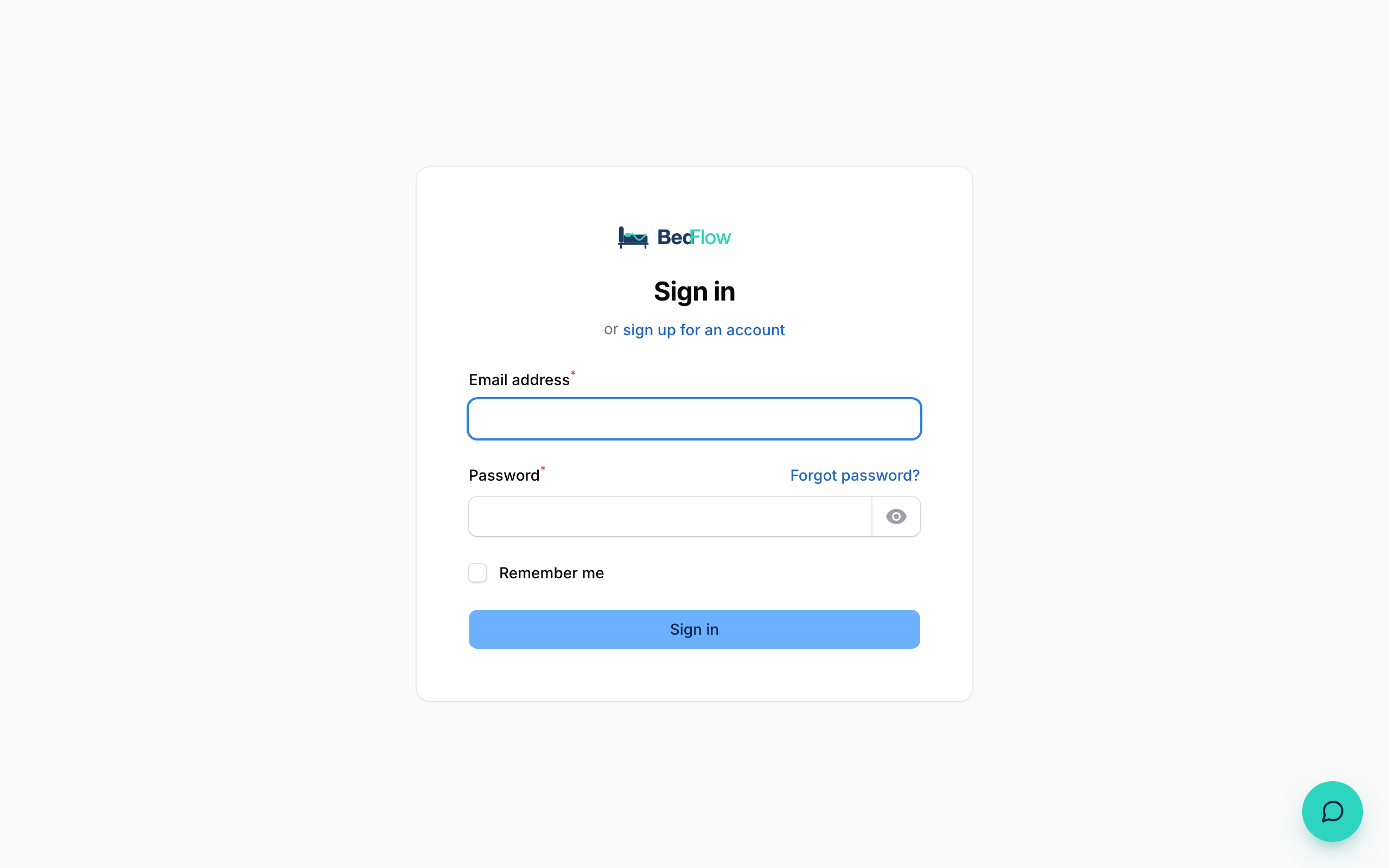
On the login screen, under Or log in via, you'll find the Log in with Google button. If you use a Google account (Gmail or Google Workspace) with the same email address as your BedFlow account, you log in without a password.
- A Google account with a different email address is refused: you can only log in to an account that already exists.
- When creating a trial account you can also choose Sign up with Google straight away. Your email address is then confirmed immediately.
Nothing is changed on your Google account. BedFlow only requests your name and email address to recognise you.
Passkeys: logging in without a password
A passkey is the safest and quickest way to log in. You unlock with your fingerprint, your face or your device's PIN. There is no password that can be stolen or guessed. Passkeys work with Face ID and Touch ID (Apple), Windows Hello, Android and the common password managers.
Here's how to set one up:
- Log in, click your name at the top right, then your profile.
- Go to the Passkeys section, give your passkey a name (e.g. "Laptop") and click Create.
- Your device asks for confirmation: fingerprint, face or PIN. Done.
- Next time you log in, click Log in with passkey and confirm the same way.
You can register several passkeys, e.g. for your laptop and your phone. If you lose a device, remove the matching passkey from your profile.
Two-factor authentication
Want an extra lock on top of your password? In your profile, switch on the Authenticator app with Set up. You link an app such as Google Authenticator, 1Password or Bitwarden, and from then on you confirm every login with a 6-digit code. Keep the recovery codes in a safe place: they get you in if you lose your phone.
Forgot your password?
On the login screen, click the link to reset your password. You'll receive an email with a link to choose a new password.
Recommended order
- Add a passkey: the safest option and the least hassle.
- No device with passkeys? Switch on two-factor authentication.
- In any case, use a unique, long password, or log in with Google.
Tip for teams: give every staff member their own user instead of one shared password. That way you can revoke access per person and decide who can see what. See Extra users and permissions.