POS register — charging bar & consumption
Updated on 2026-07-01
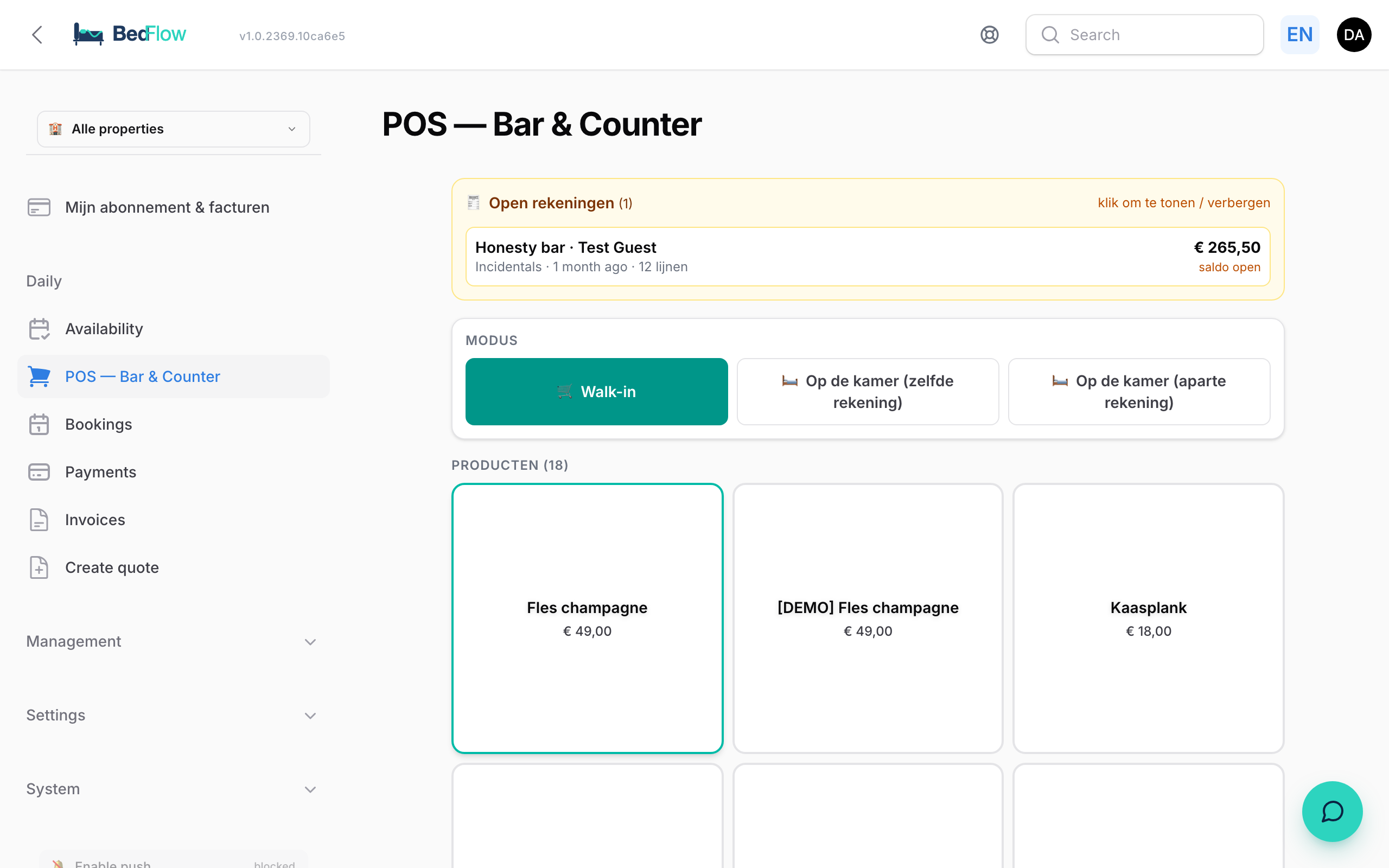
Daily → POS — Bar & Counter — BedFlow's mobile point of sale. Open it on your phone, tap a product and it lands straight on the right tab: a walk-in customer's, or an in-house guest's.

Where do you find the POS?
In the sidebar under Daily, right below the room calendar. The POS only appears for properties with a bar, honesty bar or display counter — vacation homes don't see the menu item by default. Does your vacation home have a minibar after all? Ask support to activate the POS.
Three modes
- 🛒 Walk-in — a passer-by who pays right away. Tap products, pick a payment method, done.
- 🛏️ On the room (same tab) — the consumption goes onto the booking's master tab and therefore onto the same invoice as the stay.
- 🛏️ On the room (separate tab) — the consumption is tracked separately from the room tab. Handy when the guest pays their own consumption while, say, an employer pays for the room.
Charging consumption to an ongoing booking
- Open Daily → POS — Bar & Counter
- Choose On the room (same tab) or On the room (separate tab)
- Pick the guest under Choose booking (in-house) — you only see guests staying today
- Tap the products in the grid — every tap adds 1 unit
Every line goes to the booking's proforma invoice immediately. The outstanding balance on the dashboard and in the invoice list is therefore always up to date, even before check-out.
After ringing up, click ✓ Booked on the room — the tab stays open until check-out.
Which products appear on the grid?
All active products from the Honesty bar, Food & Beverage and Wellness categories, grouped by category and sorted by sort order. You manage them via Management → Products — see Managing products & extras.
Settling a walk-in
- Choose the Walk-in mode and tap the products
- Optional: fill in In the name of — type a name, or a VAT number (e.g.
BE0123456789): BedFlow looks up the company automatically via VIES and puts the invoice on the right company details - Pick a payment method:
- 💳 Bancontact (QR) — shows a QR code for the customer to scan; the payment is linked to the invoice automatically
- 🏷️ BC already paid — the customer already paid via the QR sticker or the standalone terminal
- 💳 Stripe, 💵 Cash, ⋯ Other
- 📄 Proforma (pay later) — the invoice is created but stays Unpaid until you register the payment via the Invoices page (e.g. for a wire transfer)
After settling, the invoice is created and the POS is ready for the next customer.
Removing a wrong line
Tapped the wrong product, or tapped twice? Remove the line via the POS itself:
- Open the tab — the active tab is at the top; an earlier one is under 🧾 Open tabs → Resume
- Tap 🗑 next to the line
The line then also disappears from the booking's proforma invoice, and the amount already paid and the outstanding balance stay correct. So always remove bar lines via the POS (or via the honesty bar block on the booking), not directly on the invoice — that way the tab and the invoice are guaranteed to stay in sync.
Managing open tabs
- ↩ — detach the active tab and start a new customer; the previous tab stays open and can be resumed later via Open tabs
- 🗑 (at the top, next to the total) — wipes the entire tab: all lines and payments, no invoice. Cannot be undone
- Closed tabs can no longer be changed
At check-out
Open room tabs are automatically settled at check-out: the lines are already on the booking's (proforma) invoice and the tab is closed. The guest thus receives one complete final invoice covering the stay and the consumption.
Frequently asked questions
I don't see the POS in the menu? Your property is configured as a vacation home without a bar. Ask support to activate the POS.
Can the guest register consumption themselves? Yes — the guest can tap Honesty bar products during their stay in the guest portal. Every tap lands on the same (proforma) invoice and you see it immediately in the admin.
I accidentally tapped twice? Remove one of the two lines with 🗑 — the invoice line disappears too and the balance stays correct.
Can I invoice a walk-in to a company? Yes — type the VAT number in the In the name of field. BedFlow fetches the company name and address automatically via VIES.
Which VAT rate is used? The rate configured on the product itself (Management → Products).