General settings
Updated on 2026-04-26
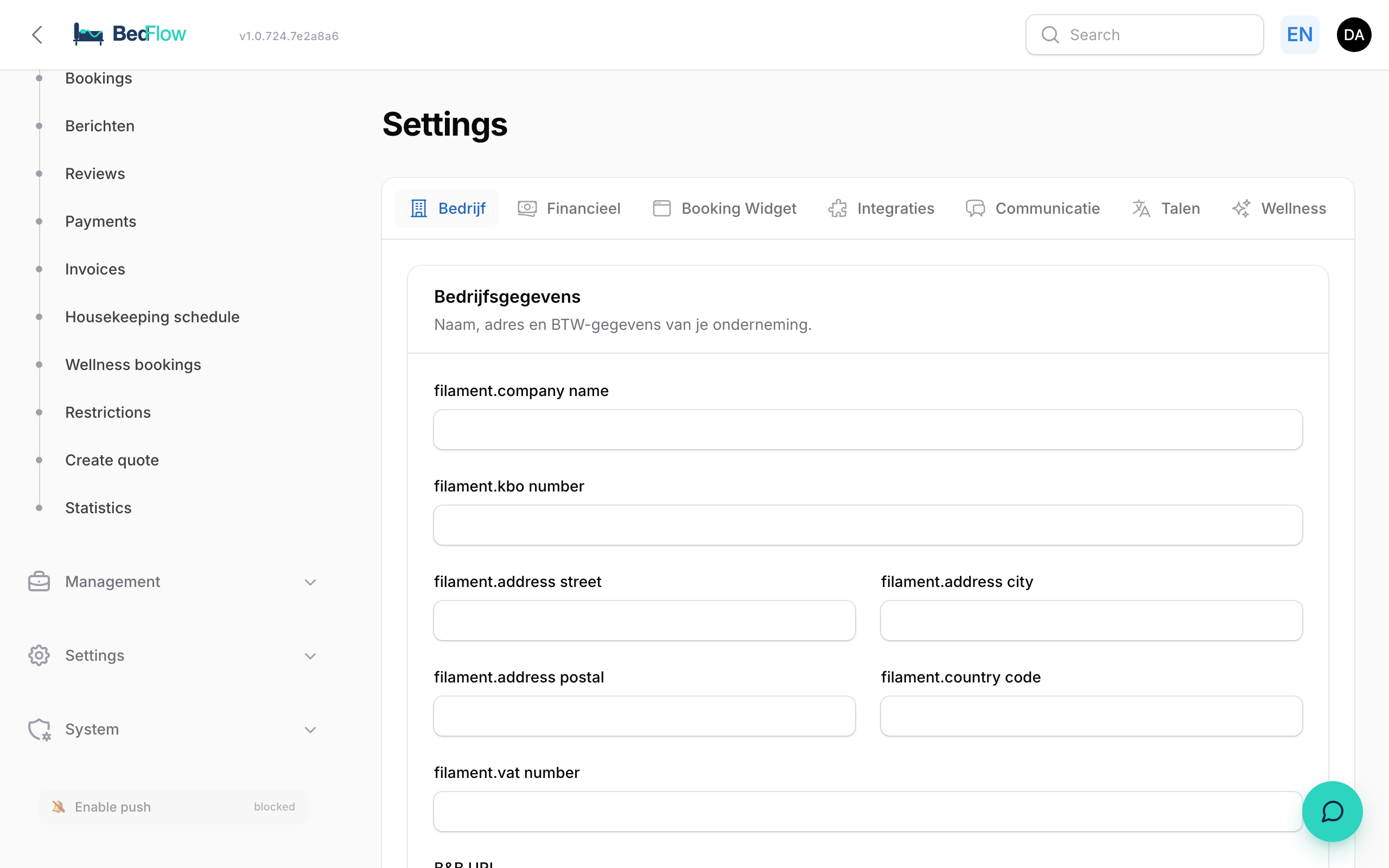
One central place for all property-wide settings — check-in times, deposits, cancellation terms, branding colours, phone numbers and more. Found in the sidebar under Settings → General settings.
What is in it?

The page is split into tabs, each with a logical group of settings:
Booking widget
- Widget on/off — enables or disables the public booking form on your website entirely
- Check-in from / to — e.g. 15:00 – 20:00, guests see this in the confirmation
- Check-out before — e.g. 11:00
- Deposit percentage — 30% by default
- Payment deadline — hours after booking within which the deposit must be paid (otherwise the booking expires automatically)
- Cancellation days — free cancellation up to X days before arrival
Branding
- Property name (translatable per language)
- Logo (PNG/SVG)
- Colour palette — primary, accent
- Favicon
Welcome information
- WiFi SSID + password (sent along in the pre-arrival email and shown in the guest portal)
- Parking instructions
- Contact phone number
- Address
- Google Maps embed
Notifications
- Telegram bot token + chat ID
- WhatsApp provider choice + API key — TextMeFlow (free from Starter, one-click activation via
/account/billing) or TextMeBot (legacy third-party, $6/m separate) - Email from-address
- Whether the admin gets a CC on guest emails
Accounting
- Yuki connection (administration ID, API key)
- Yuki PEPPOL e-invoicing on/off
- Property VAT number
- Default ledger accounts
Operational
- Housekeeping module on/off
- Notification time for housekeepers (default 07:30)
- Statbel reporting on/off (mandatory in BE for B&Bs)
How do you change a setting?
- Open Settings → General settings
- Click the relevant tab
- Change the value
- Save at the bottom of each tab — active immediately
Frequently asked questions
Does this also change existing bookings? No — existing bookings keep their original rates, deposits and check-in times. Only new bookings follow the updated settings.
Can I temporarily pause the booking widget? Yes, switch off the Widget on toggle. The widget then shows a temporary "we are briefly closed" message on your website.
Where is the white-label config for our custom domain?
Go to System → Properties → open your property → tab Custom domain. There you configure booking.yourdomain.be with automatic HTTPS via Let's Encrypt.
Related
- Quickstart — a first tour
- Integrations — configure external services