The booking widget (online booking on your own website)
Updated on 2026-10-28
BedFlow includes a booking engine (widget): your guest sees your availability, chooses dates and rooms and books directly with you, without commission for a channel.
Your booking page
The widget is always on your own booking page: https://bedflow.eu/book/{your-property}. You'll find the exact address under Settings → My property, section Website & booking page, on the Your booking page card. If you've connected your own domain name, the widget is there too.
You switch online booking on or off with the Guests can book online switch in the same section. If it's off, nobody can reserve through your booking page any more and the page disappears from Google.
Already have your own website? Three ways
In Settings → My property, section Website & booking page, block Already have your own website?, you'll find three ways to let guests book from your own site. You can combine them. Each block has a Copy button.
- Simply share the link: put the link to your booking page behind a "Book now" button, in your emails or on social media. You don't need to install anything.
- The booking widget inside your website: a line of code (an iframe) that your web designer pastes onto a page. The calendar then appears within your own site.
- A floating booking button: a small tab that moves along on every page of your site (see below).
You'll also find an embed code and the plain link under Settings → Integrations → Guest experience → Booking Widget → Configure, together with the choice of rooms and language.
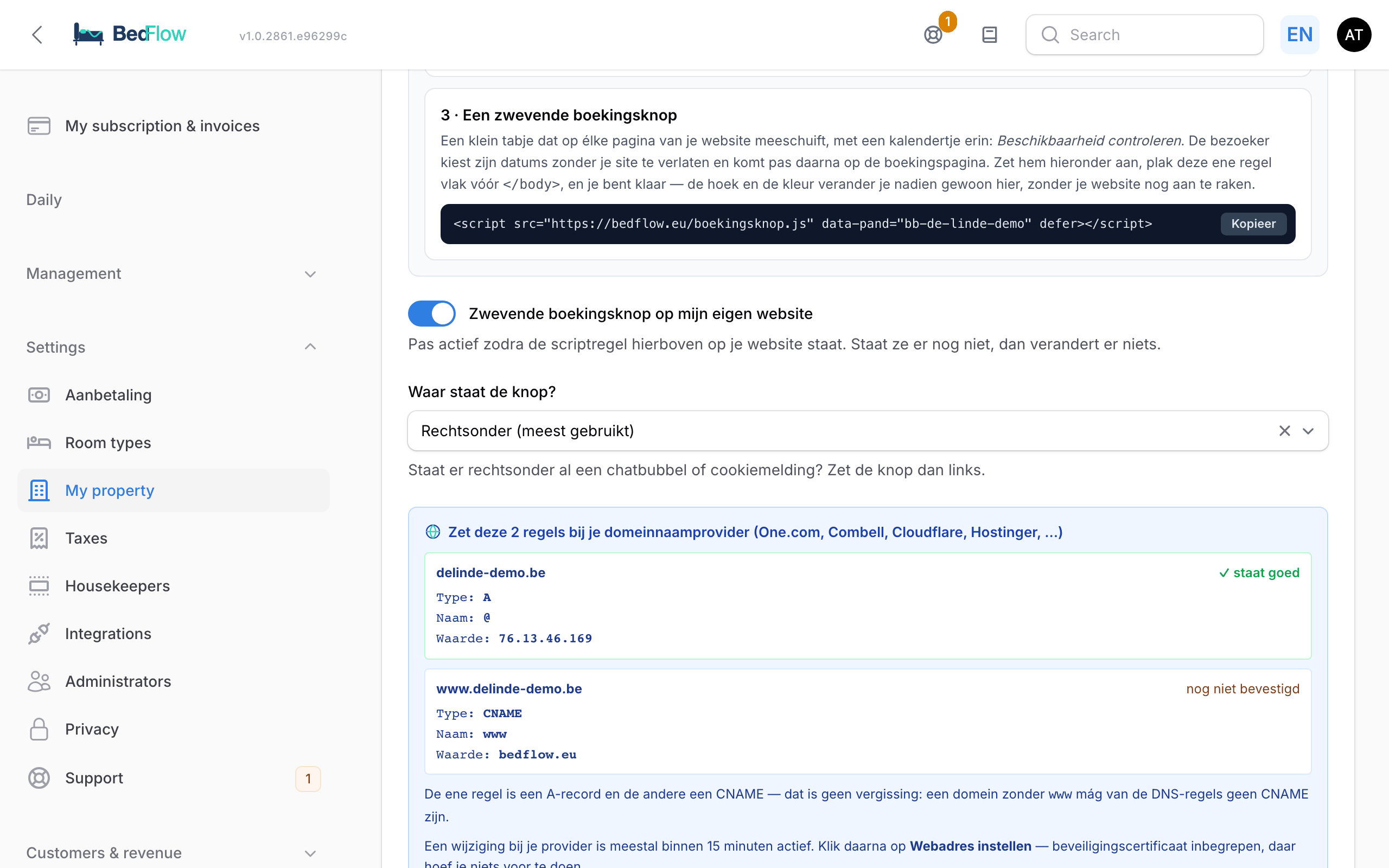
The floating booking button
-
In block 3, copy the script line. It looks like this:
<script src="https://bedflow.eu/boekingsknop.js" data-pand="your-property" defer></script> -
Have it pasted just before
</body>on your website (on every page, or in the shared footer). -
Switch on Floating booking button on my own website.
-
Under Where is the button?, choose: Bottom right (most used), Bottom left, Top right or Top left. If there's already a chat bubble or cookie notice at the bottom right, choose left.
The button shows "Check availability" (in your property's language) in the Accent colour from the Branding section. When a page opens, the panel is open; only the cross closes it. The visitor chooses Arrival, Departure and Guests and clicks View availability: your booking page opens in a new tab, with those dates already filled in.
You can change the position and colour in BedFlow afterwards; you don't need to change your website for that. If online booking or the button is switched off, nothing appears.
In Google Analytics you recognise visitors who came via the button by utm_source=eigen-website and utm_medium=boekingsknop.
Configuring the widget
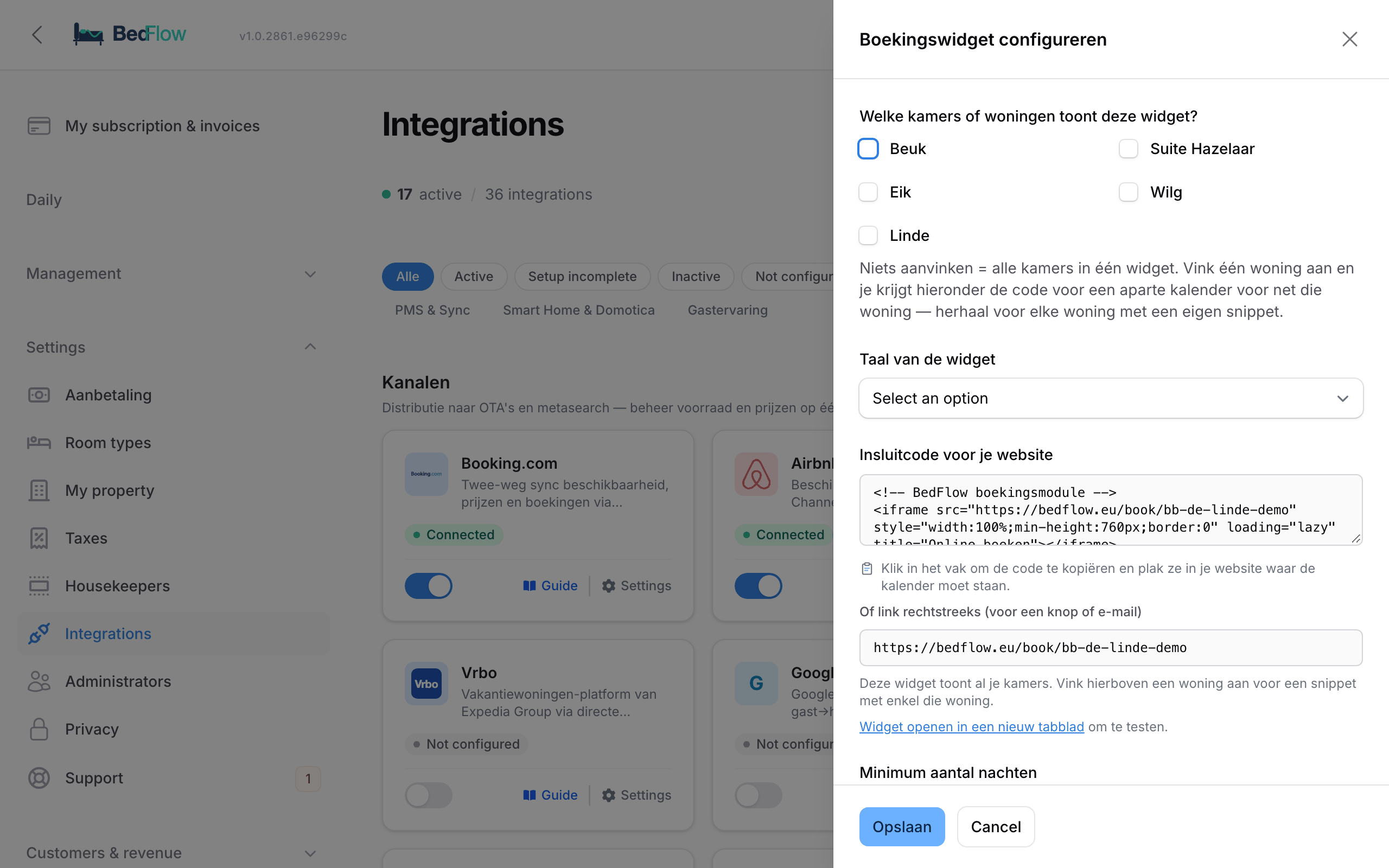
Go to Settings → Integrations → Guest experience → Booking Widget and click Configure.
| Field | Explanation |
|---|---|
| Which rooms or homes does this widget show? | Tick nothing = all your rooms. If you tick one home, you get the code for a calendar with only that home below. |
| Widget language | Nederlands, English, Français, Deutsch, Português or Italiano. By default your property's language: the address then contains no language. If you choose another language, it is added, e.g. /book/your-property/pt (?lang=pt on your own domain name). The code and the link adjust accordingly. |
| Embed code for your website | Click in the box to copy the code. Below it is the plain link, for a button or an email, and a link to test the widget. |
| Minimum number of nights | 1 by default. |
| Maximum number of nights | 14 by default. If you rent by the month, set it higher. |
| Online booking for today closes at | A time, e.g. 18:00. After that, today disappears from the calendar. Empty = bookable all day. |
| Then also close today on the booking channels | Only with a closing time, see below. |
| Minimum preparation time (hours) | How many hours before the start of check-in you need at least. 0 = off. |
| How far ahead may a guest book? (days) | 365 by default, from 30 to 1095. See below. |
Click Save.
A separate calendar per home
Do you rent out several homes and want each page of your site to show only the calendar of that home? Under Configure, tick that one home and copy the code that appears below it. The address then gets e.g. ?rooms=12:
<iframe src="https://bedflow.eu/book/your-property?rooms=12" style="width:100%;min-height:760px;border:0" loading="lazy" title="Book online"></iframe>
Repeat this for each home. Prices, discounts and restrictions stay the same; the widget only filters on what you ticked, and never shows rooms from another property.
Until when can a guest book?
How far ahead. With How far ahead may a guest book? (days) you set the last arrival date. The calendar doesn't show any further and a link with a later date is refused. BedFlow also closes the nights beyond that limit on your connected channels (Booking.com, Airbnb, …), and moves the limit forward by one day every day. If you rent two seasons ahead, set it higher, up to 1095 days.
Until when on the day itself. Two settings that you can use together or separately:
- Online booking for today closes at: a clock time, e.g. 18:00. After that, today disappears from the calendar. That way you stop the booking that comes in at 11 pm for the same night.
- Minimum preparation time (hours): counted up to the start of the check-in hours. With 4 hours and check-in from 15:00, today closes at 11:00.
If both are filled in, whichever closes first applies. If you leave them empty, today stays bookable all day. The closing time follows your property's time zone.
On the booking channels too. Tick Then also close today on the booking channels and BedFlow closes today to arrival on every connected channel as soon as your closing time has passed. This happens within fifteen minutes. If someone still calls afterwards, open the day again in the restrictions; it then stays open until tomorrow. The switch is off by default and only works with a closing time. The preparation time only applies to your own widget.
You can always enter a walk-in or phone booking yourself, even after the closing time.
A link with dates already filled in
If you send a guest a link to your booking page, you can fill in the arrival, departure and number of guests in advance:
https://bedflow.eu/book/your-property?checkin=2026-08-14&checkout=2026-08-16&adults=2
- checkin (or arrival) and checkout (or departure): dates as YYYY-MM-DD. Instead of a departure date you can also use nights, e.g.
nights=3. - adults (or guests, occupancy): the number of adults.
- rooms: only show certain rooms, as with a separate calendar per home.
- lang:
nl,en,fr,de,ptorit.
If both dates are valid and available, the guest jumps straight to the room choice. BedFlow simply ignores a date in the past or in a different format; the guest then chooses themselves.
What the guest sees
- The guest chooses their dates and the number of people, then their room or rooms, the extras, fills in their details and confirms.
- The widget is available in Dutch, English, French, German, Portuguese and Italian and works on mobile, tablet and computer.
- A guest can book several rooms in one go.
- Extras: wellness (with a choice of time), breakfast, surcharges, … A product with "Guest may choose quantity" gets a counter.
- The room card shows the meal plan (e.g. "Breakfast included") and the practical information shows your cancellation policy, including the charge for late cancellation or "non-refundable".
- Mandatory fees (e.g. final cleaning) are ticked automatically with the label Required. See Mandatory fees.
- If you ask for a payment at booking, the guest immediately pays the deposit or the full amount online, as you set it up under Settings → Deposit (see Deposit).
- Colours and logo come from your property's Branding section.
Your own title at the top
By default the booking page says Book online at the top, in the guest's language. Prefer something else, e.g. Search and book? Fill it in under Settings → My property, section Booking page: texts, per language (Title at the top (Nederlands), Title at the top (English), …). A language you leave empty keeps the default title. The title also appears in the browser tab, when someone shares the link and on the search page across all your properties.
Which type is shown on the card?
Every room card shows the Unit type of the room type, in the guest's language: Holiday home, Apartment, Studio or Suite. For an ordinary room it stays Standard room. You choose the type under Settings → Room types (see Creating a room).
Extra display options (off by default)
Under Settings → My property, section Booking page: behaviour, three switches change how the widget looks. They are off by default: as long as you don't turn them on, the widget looks as described above.
- Hide the other units once one is chosen: once the guest has chosen a unit in step 2 (himself, or via Search by group size), only his choice stays visible, so he no longer hesitates between the others. The button Show the other options brings back the whole list.
- Rent and mandatory costs below the price: below the total price the guest then sees e.g. €1,250 rent + €250 Cleaning instead of the price per night. The total then includes the mandatory costs, so the breakdown adds up. This applies to the cards in step 2 and to the options of Search by group size.
- Photo per unit in Search by group size: the options for an arrival day show the main photo of each unit (the default photo of its room type). You see this switch as soon as Search by group size is on.
Each switch works on its own and only applies to this property.
Which language does the widget open in?
The widget opens in your property's language: if your property is set to Portuguese or Italian, the guest sees Portuguese or Italian straight away. To fix a language, add it to the address, e.g. https://bedflow.eu/book/your-property/pt (?lang=pt on your own domain name).
On your booking page, the guest switches language at the top. There are buttons for Dutch, English, French and German, plus your property's language: so Portuguese too for a Portuguese property, and Italian for an Italian one. If you want different buttons, ask via support. Hovering over a button shows the name of the language, e.g. "Português".
BedFlow stores the language the guest chooses on the booking. The payment page, the emails, the WhatsApp messages and the guest page follow that choice.
Price breakdown in the overview
For each extra, the guest sees how the price is built up: unit price × quantity × people × nights. A cheese board for 4 people is shown as Cheese board (€18.00 × 4 pers), just like the tourist tax. A surcharge per extra person only counts the people above 2.
Country list in the guest's language
The guest form has the full list of countries, in the widget's language and sorted alphabetically per language. The most frequently chosen countries are at the top (Belgium, the Netherlands, Germany, France, United Kingdom, Luxembourg, United States).
Rate options: several rates per room
Want to let the guest choose between, for example, Standard with breakfast and Hot deal (without breakfast, non-refundable)? You set that up per room under Settings → Room types → edit room → Services & policy tab → Rate options on your own booking site.
- The room price is always the first option, with the room's meal plan and cancellation policy. You only add variants.
- For each option you choose a name, a Price difference (percentage of the room price or a fixed amount per night; negative is a discount, positive a surcharge), the Meals and the Cancellation (or Same as the room).
- The widget shows the options in the room card, with the price for the chosen number of people. The choice appears in the overview, on the proforma and in the confirmation email.
- The largest discount wins. If an option has a discount and a length-of-stay discount also applies, BedFlow only applies the larger one. A surcharge always comes on top of the room price.
- Non-refundable = pay in full in advance. The guest then pays the full amount when booking, regardless of your deposit setting.
- Without options, the widget shows one price. Booking.com and the other channels are not affected by this.
Other settings the widget uses
| What | Where |
|---|---|
| Check-in and check-out times | Settings → My property → Check-in / check-out times (different per home: see Different settings per unit) |
| Cancellation policy and free cancellation period (in hours, up to 4320 hours = 180 days) | Settings → My property → Cancellation policy |
| Terms links | Settings → My property → Legal links (per-property) |
| Colours and logo | Settings → My property → Branding |
| Deposit and payment deadline | Settings → Deposit |
| Tourist tax | Settings → Taxes (see VAT & tourist tax) |
| Discount from a certain number of nights | Management → Rates, profile of the Length of stay type |
| Minimum stay, arrival and departure days | Management → Rates → Restrictions, channel Direct (website) |
| Grouping room types | Settings → My property → Booking widget behaviour (per-property override), see Room types with several rooms |
Terms links
In the Legal links (per-property) section, fill in Terms and conditions URL, Cancellation policy URL and House rules URL. When filled in, the guest sees clickable links next to the consent checkbox; when empty, the widget shows the same text without a link, so the guest never clicks a broken link. Always fill in the first two before you go live: without a link to the text the guest agrees to, the checkbox "I agree to the terms and conditions and the cancellation policy" is legally worthless. You fill them in once: the same links appear in the widget, on your quotes and at the bottom of the guest page.
If your website is the BedFlow mini-site, fill in the cancellation policy as a legal page under Management → Website → My website. As soon as your domain is live, BedFlow uses that page as the link for as long as you don't enter a URL here.
The "Booking engine by BedFlow" credit
On the Seizoen, Micro and Starter plans, the widget shows a small "Booking engine by BedFlow" at the bottom. From Pro, that credit is gone. Embedding the widget on your own website is possible on every plan.
How do you recognise widget bookings?
A booking via the widget is a direct booking with channel Website. In the bookings list, Source shows "Direct"; in the room overview there's a green globe with the tooltip "Website — direct booking". In your automated messages they count as direct bookings.
Frequently asked questions
Can I set a cancellation period of 6 weeks? Yes. You set the period in hours: 1008 hours = 6 weeks. The maximum is 4320 hours (180 days).
The terms link in the widget returned a 404. Fill in the addresses of your own terms pages under Legal links (per-property). As long as they're empty, the widget deliberately shows no link.
Can I put one calendar per holiday home on my site? Yes. Under Configure, tick that one home and copy the code that appears below it. Repeat for each home.
Can I stop last-minute bookings? Yes, with a closing time or a preparation time, see "Until when can a guest book?". Your own grid stays open: you can always enter a walk-in.
Why can't a guest book further ahead on Booking.com than on my site? Because the limit from How far ahead may a guest book? also applies on your channels. If you want to rent further ahead, increase that number.
How does the widget stop robots and fake bookings? While the guest fills in their details, their browser solves a small calculation in the background, issued by our own server. The guest does not see or do anything for it, no cookie is added and nothing goes to another service. A booking without that solution is refused, as is a booking with a disposable address or an address that cannot receive mail (such as [email protected]): the guest then sees a message under the email field. If an unusual number of bookings for your property comes in within a short time (more than five in ten minutes), the widget asks the guest to wait a moment and BedFlow receives an alert. Bookings you enter yourself, or that come in via Booking.com, Airbnb and other channels, do not go through this check.