Restrictions — min. nights, CTA/CTD and stop-sell
Updated on 2026-07-16
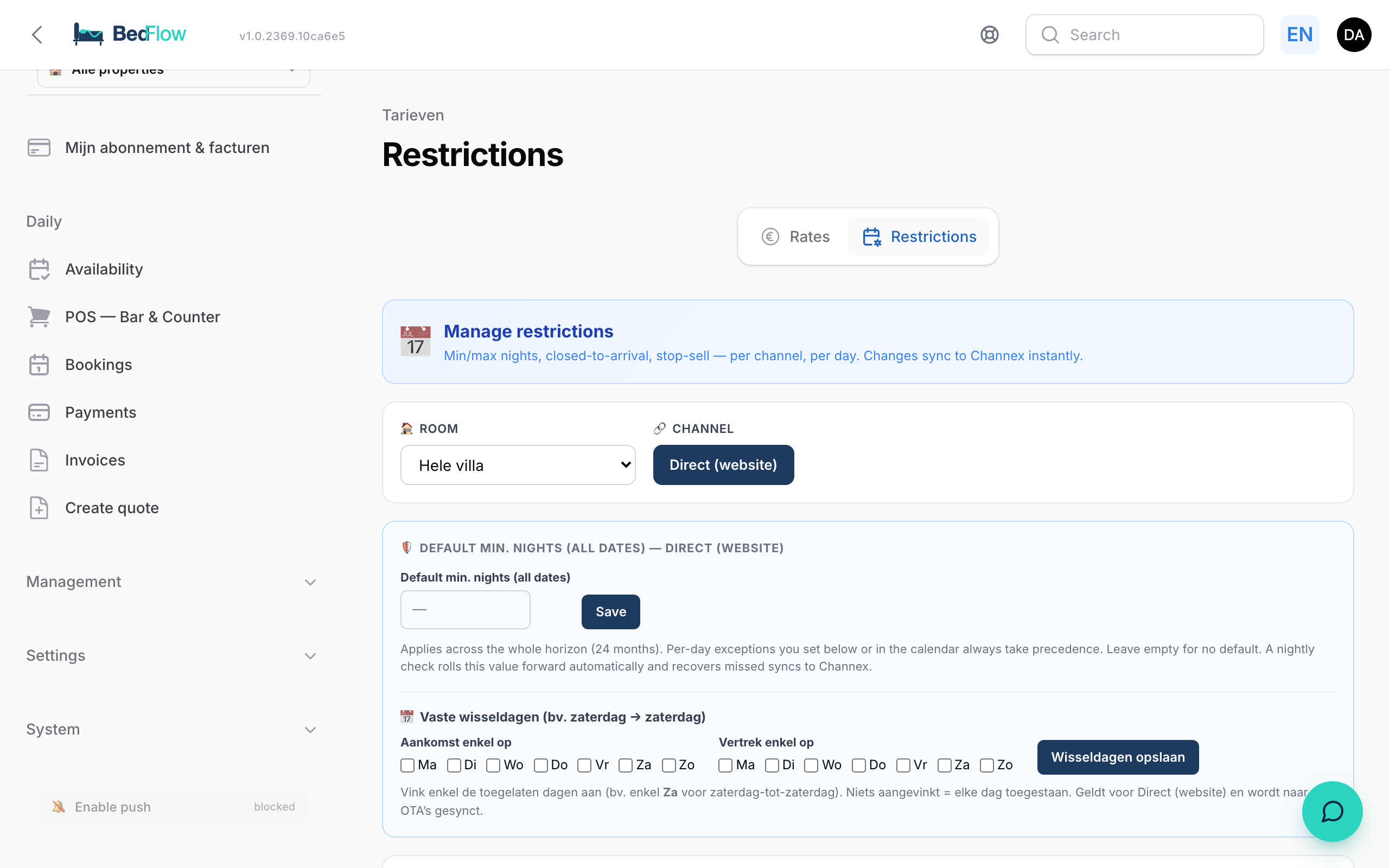
Want to control when guests can arrive, depart or book — or close a period entirely for renovations or a weekend to yourself? You do that in Manage → Rates, tab Restrictions.

What is this?
The Restrictions page is a calendar per room × channel. At the top you pick:
- Room — a dropdown with all your rooms
- Channel — tabs: Direct (your own booking widget) always comes first, followed by your OTA channels (Booking.com, Airbnb, …)
Below that you see one month at a time. Days with a restriction turn red and show icons; days without a restriction are simply open.
The restriction types
These are the options, exactly as the legend below the calendar explains them:
- ⛔ Stop sell — the day is fully closed for sales. No new booking can include this day.
- 🚫→ No arrival (CTA) — closed to arrival: guests may not arrive on this day, but an ongoing stay spanning this day is fine.
- ←🚫 No departure (CTD) — closed to departure: guests may not depart (check out) on this day.
- ≥2n Min. nights — minimum length of stay. Two variants: at arrival (applies when the guest arrives that day) and through (also applies when the day falls in the middle of the stay).
- ≤7n Max. nights — maximum length of stay.
Setting restrictions per day
- Pick the room and channel at the top
- Click a day in the calendar
- In the popup, tick Stop sell, No arrival allowed and/or No departure allowed and fill in min./max. nights
- Click Save + sync → the change joins the sync to Channex within 30 seconds
Bulk apply to a date range
For a whole holiday period, don't click day by day. Use the Bulk apply to date range block:
- Fill in From and To
- Tick the desired restrictions (Stop sell / No arrival (CTA) / No departure (CTD)) and/or fill in min./max. nights
- Click Apply → all days in the range are updated in one go for the current room + channel
Quick actions
Quick actions are standing rules: one click turns them on or off. They apply immediately to all future dates (next year included), sync automatically to your channels, and you never have to look at them again. An active quick action turns dark; clicking it again switches it off. Manual per-day settings always keep applying — the strictest rule wins.
- Weekend · min 2 nights / Weekend · min 3 nights — minimum stay for arrivals on Friday or Saturday
- 🎉🚫→ No arrival on public holiday — guests cannot arrive on official public holidays
- 🎉←🚫 No departure on public holiday — guests cannot depart (check out) on official public holidays
- 🗑 Clear month — removes all manual per-day restrictions of the displayed month (standing rules stay in place)
Public holidays: pick your countries
Below the quick actions you'll find country checkboxes: 🇧🇪 België, 🇳🇱 Nederland, 🇩🇪 Deutschland and 🇫🇷 France (slightly dimmed while no holiday rule is active). BedFlow knows the official public holidays of those countries — including the moving ones (Easter, Ascension Day, Whitsun) — and recalculates them automatically every year. Your property's country is ticked by default; feel free to also tick the neighbouring countries your guests come from.
Public holidays are marked with 🎉 in the calendar, so you can see at a glance which days the rule affects. These are the same public holidays the pricing engine uses for holiday surcharges on the Rates page.
Default min. nights (all dates)
Want a minimum stay that always applies, not just this month? Fill in Default min. nights (all dates) (1–30):
- Applies across the whole horizon of 24 months ahead
- Per-day exceptions you set in the calendar always take precedence
- A nightly check rolls the value forward automatically and recovers missed syncs to Channex
- Leave empty = no default
Fixed turnover weekdays
Renting out a vacation home with fixed arrival and departure days (e.g. Saturday to Saturday)? That's what the Fixed turnover weekdays block on the same page is for — you simply tick the allowed arrival and departure days. Read all about it in Setting up BedFlow for vacation homes.
Your own website only (direct-only)
The Direct channel also works without a channel manager: restrictions on the Direct tab are enforced live in your booking widget, without Channex. If you have no OTA connection, you only see the Direct tab — and that's enough to manage min. nights, turnover days and closure days for your own website.
Frequently asked questions
Will I lose existing bookings that fall within this period? No. Existing bookings stay in place. Restrictions only apply to new bookings.
What's the difference between stop sell and CTA + CTD combined? Stop sell closes the day completely: no stay may include that day. CTA + CTD combined only forbid arrival and departure on that day — a longer stay may still span it. Handy around a busy day when you don't want any check-ins or check-outs.
I don't see the Restrictions tab — where is it? The Restrictions page is not available on the Micro plan. Upgrade to Starter or higher and the tab appears under Manage → Rates.
How fast does a restriction reach Booking.com? Changes are batched via the sync queue and sent to Channex within about 30 seconds. Allow a few minutes for the OTA to show them.
Related
- Setting up BedFlow for vacation homes — fixed turnover days and minimum stay in practice
- Rate management — the pricing engine on the same Rates page
- Room overview — to quickly see which days are blocked
- Channel Manager (Channex) — how restrictions are pushed to OTAs