Setting up BedFlow for vacation homes
Updated on 2026-07-16
Renting out one home as a whole — no separate rooms, but the entire house per week or weekend? BedFlow is built for that just as much as for B&Bs. This article walks through all the settings that make a vacation home different: one unit, pricing per number of guests, fixed turnover days, mandatory fees and a longer cancellation window.
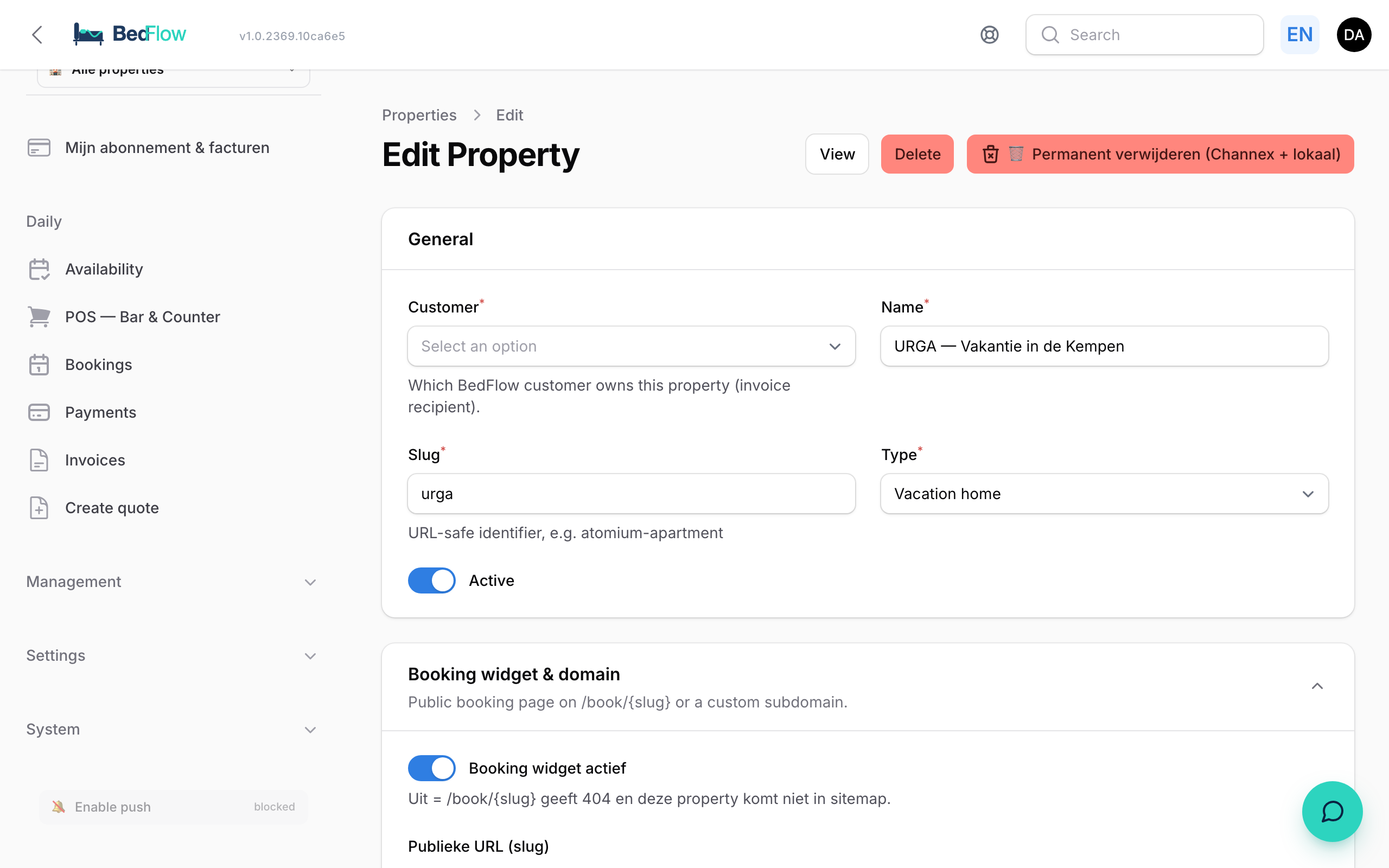
Step 1 — set your property type to "Vacation home"

- Go to Settings → My property
- In the General section, pick Vacation home under Type
- Save
As soon as you pick "Vacation home", the meal plan (section Meals, field What is included by default?) automatically switches to No meals included. That way a guest never wrongly sees "breakfast included" in the booking widget or on the OTAs. It's a default, not a lock: if you do want to offer breakfast, simply change the meal plan again.
Step 2 — one room = the whole home
Create exactly one room that represents the entire home:
- Go to Creating a room and give the room the name of your home
- Set the maximum occupancy to the total number of guests the home can host
- Done — one booking occupies the whole home at once; if it's booked, the calendar is full
From now on you set all prices, restrictions and availability on that single "room".
Multiple homes at different addresses?
Create a room type per home and give each its unit type and own address — emails, mini-site, widget and Google then automatically show the right house. Read all about it in Different settings per unit.
Step 3 — pricing per number of guests
A vacation home for 2 people rarely costs the same as for 6. Two ways to handle that:
1. Occupancy prices (multipliers) In Settings → My property, section Occupancy prices (modifiers), you set a multiplier on the base price per number of adults. Defaults: 1 person = 0.80 × the price, 2 = 1.00 ×, 3 = 1.15 ×, 4 = 1.30 ×. Add rows for larger groups. You can override these values per room.
2. Per-person surcharge via a product In Manage → Products, create a product (e.g. "Extra guest") and tick Price per person and Price per night. The widget then automatically calculates price × guests × nights. Combine with Mandatory on every booking if the surcharge should always apply.
Step 4 — mandatory fees (cleaning, linen)
Almost every vacation home charges a compulsory final cleaning fee, often linen or towels too. Create a product for that with the Mandatory on every booking toggle:
- It is charged automatically on every booking of the linked unit(s)
- In the booking widget it appears as a fixed line labelled "Mandatory" — the guest cannot untick it
- It counts towards the total from the very first price display, so no surprises at checkout
All details are in Mandatory fees.
Step 5 — fixed turnover days (e.g. Saturday to Saturday)
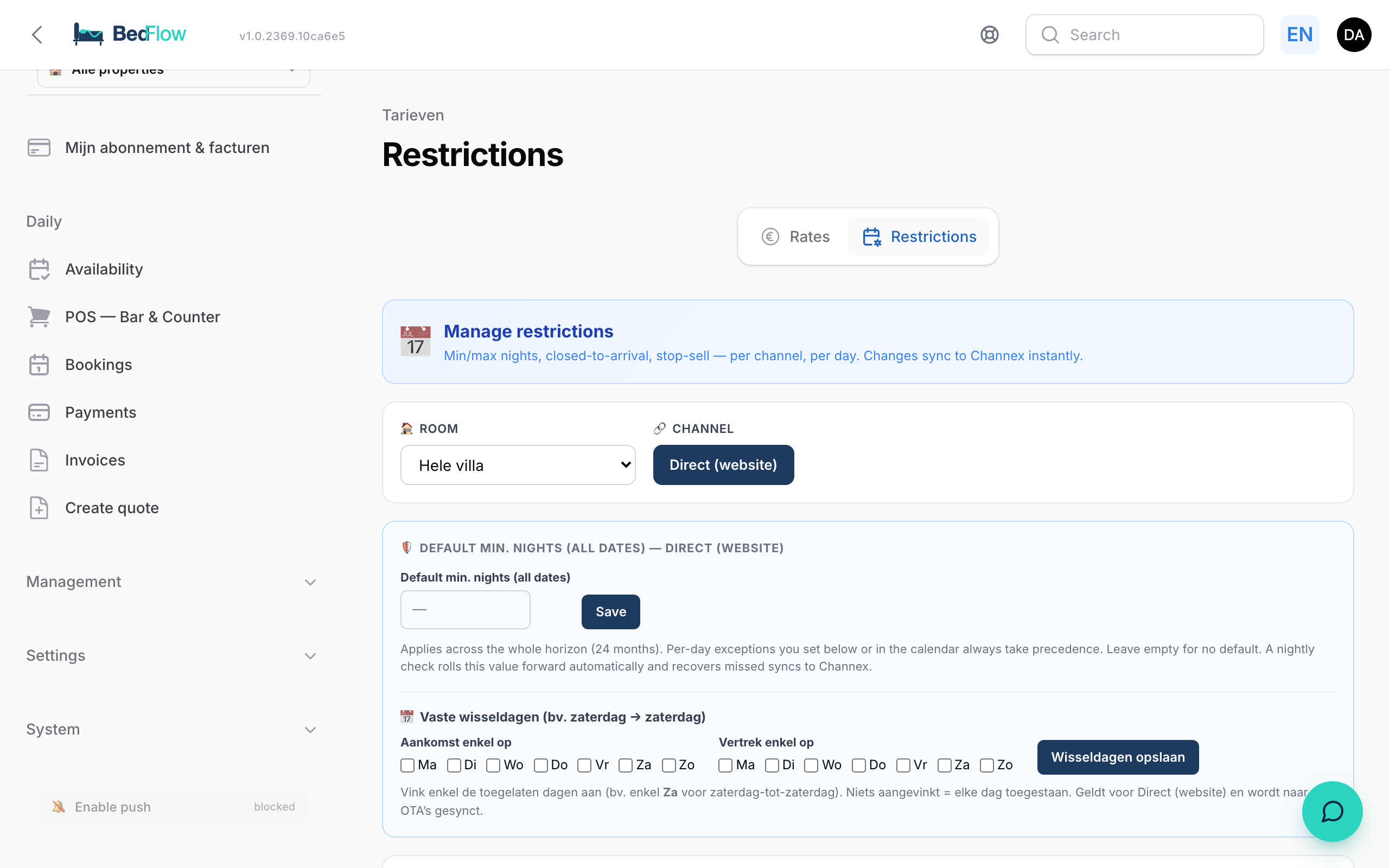
Renting per week with a fixed arrival and departure day? You set that on Manage → Rates, tab Restrictions, block Fixed turnover weekdays (e.g. Saturday → Saturday):
- Pick your room and the channel at the top
- Under Arrival only on, tick the allowed arrival day(s) — e.g. only Sat
- Under Departure only on, tick the allowed departure day(s)
- Click Save turnover days
Good to know:
- Nothing ticked = every day allowed — the rule only kicks in once you tick at least one day
- The rule applies per room × channel: set it on the Direct tab and on every OTA tab you use
- OTA channels are synced to Channex immediately; a nightly check keeps the rule current 24 months ahead
- The turnover days work on top of any per-day restrictions (CTA/CTD): the strictest rule always wins
Step 6 — minimum stay
On the same Restrictions tab, fill in Default min. nights (all dates) (e.g. 7 for weekly rentals). That value applies across the whole 24-month booking horizon; per-day exceptions in the calendar still take precedence. See Restrictions for all options.
Want an additional minimum that only applies to your own widget? You can, via Settings → My property, section Booking widget behaviour, field Minimum number of nights.
Step 7 — cancellation policy with a longer window
Vacation homes often use a cancellation window of weeks, not days. In Settings → My property, section Cancellation policy:
- Pick your policy: Flexible (free cancellation), Non-refundable or Late cancellation with fee
- Under Free cancellation until X hours before arrival, fill in the number of hours — up to 4320 hours (180 days). Handy values: 168 = 1 week, 720 = 30 days, 1008 = 6 weeks
- With "Late cancellation with fee" you set the percentage charged via Late cancellation fee
The booking widget and the confirmation email automatically show the guest the correct window.
Frequently asked questions
Can a guest exceptionally arrive on a different day? The turnover-day rule always beats per-day exceptions. To allow a one-off different arrival, temporarily tick that extra weekday, let the guest book, and switch the rule back afterwards.
Do the turnover days also apply on Booking.com and Airbnb? Yes. You set them per channel and BedFlow pushes them to the OTAs via Channex. Without a channel manager, the Direct tab simply works live in your own booking widget.
I do want to offer breakfast or a breakfast basket — is that possible? Absolutely. Switch the meal plan back to "Breakfast included", or keep "No meals included" and sell a breakfast basket as a separate product in the widget.
In which language does my guest see the booking form? The widget translates everything automatically into the guest's language — including the country list in the address form. So no half-English, half-Dutch mix.
Related
- Creating a room — the unit that represents your whole home
- Restrictions — min. nights, CTA/CTD and stop-sell in detail
- Mandatory fees — charging final cleaning and linen automatically
- Booking widget — how your guest books directly