WhatsApp via TextMeFlow (free from Starter)
Updated on 2026-10-01
Settings → Integrations → Communication → WhatsApp
With WhatsApp, BedFlow sends your guests the messages they actually read: practical info before arrival, the welcome message with the link to open the room, payment confirmations. Everything goes out from your own WhatsApp number, and your guests' replies come in under Daily → Messages.
BedFlow sends WhatsApp messages via TextMeFlow, a WhatsApp service from the makers of BedFlow. From the Starter plan, TextMeFlow Starter is included for free: 500 WhatsApp messages per month from your own number, on servers in the EU. You connect your number entirely within BedFlow, with a QR scan.
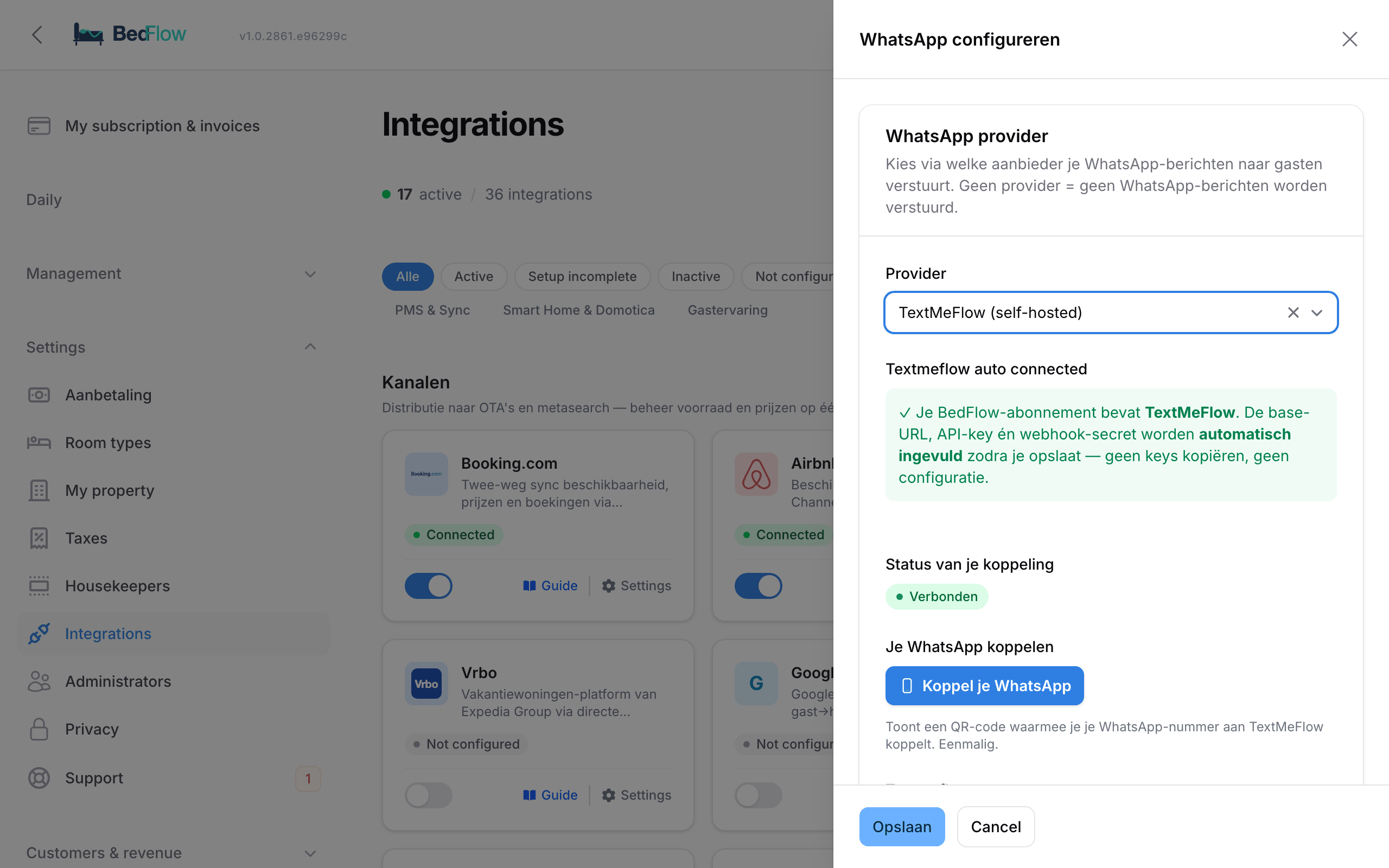
Connecting your WhatsApp
- Go to Settings → Integrations, find the WhatsApp tile in the Communication category and click Configure.
- Under Provider, choose TextMeFlow (self-hosted).
- If you're on Starter or higher, you see a green confirmation: your plan includes TextMeFlow and BedFlow fills in all the details itself as soon as you save. You don't need to copy any keys.
- Click Save. Then open the tile again.
- Under Connect your WhatsApp, click Connect your WhatsApp. A QR code appears.
- On your phone: open WhatsApp, go to Settings → Linked devices → Link a device and scan the code, just like with WhatsApp Web.
- BedFlow detects the connection by itself and shows Your WhatsApp is connected. From now on, guest messages go out via your own number.
QR code expired before you could scan it? Click New QR and scan again.
Under Status of your connection you can always see where you stand:
| Status | Meaning |
|---|---|
| Connected | Everything works |
| Disconnected | The connection dropped, with how long ago. Scan the QR code again |
| Connection not yet confirmed | You chose TextMeFlow, but the QR scan hasn't happened yet or hasn't been confirmed |
On the Integrations page, the tile also shows which service your messages go through, e.g. "WhatsApp messages to guests via TextMeFlow."
Which messages go out via WhatsApp?
| Message | When |
|---|---|
| Pre-arrival | At 10:00, two days before arrival, with the check-in times and the link to the guest page |
| Welcome on the arrival day | At 09:05 on the arrival day, if you have the welcome email on the arrival day switched on |
| Welcome at the front desk | When you click Check in, with the guest page and the buttons to open the door |
| Payment received / Deposit received | After a payment |
| Booking expired / Booking cancelled | When an unpaid booking expires, or after a manual cancellation |
| Wellness | Booked, paid, expired, balance reminder (only if you offer wellness) |
| Quick buttons | When you choose them: Room ready, Checkout, Breakfast, Wellness |
You edit the texts under Management → Messages → Message templates. See Editing WhatsApp templates. When each message goes out is shown on the timeline in Automated messages.
Every guest receives the messages in their own language: Dutch, French, English or German (otherwise English). The buttons in the messages (guest page, front door, room) are short bedflow.eu/s/… links: tidy in WhatsApp and easy to tap.
Guests per room, with their own WhatsApp and language
Does someone book several rooms for others, for example a family or a group? Then you can record who sleeps in each room.
- Go to Daily → Availability and find the booking's tile among today's cards (e.g. the arrivals).
- Click the blue label with the number of rooms (e.g. 3 rooms) or the word guest. The Guests per room window opens.
- For each room, fill in the Name and the WhatsApp number. Optionally choose the Language; by default it is set to automatic (based on the number).
- Click Save.
From then on:
- each room guest receives the automated WhatsApp messages (pre-arrival, welcome) in their own language, with only the link and door buttons for their own room;
- the booker only receives the messages for the rooms without a guest of their own. If every room has its own guest, the booker no longer receives these messages.
Connection lost? BedFlow warns you
A WhatsApp connection can drop, for example if you remove the linked device in WhatsApp. You don't have to keep an eye on this yourself:
- At the top of every screen in BedFlow, an orange bar appears: "Your WhatsApp connection for [property] has been lost. Reconnect so your guests keep receiving WhatsApp messages.", with the button Reconnect.
- On the WhatsApp tile, the status switches to Disconnected.
- Click Reconnect, scan the QR code and the bar disappears.
It's best to resend any messages that should have gone out during the interruption.
Managing your TextMeFlow subscription
Below the WhatsApp settings is the link Open TextMeFlow — manage your subscription or upgrade. It opens TextMeFlow in a new tab, already logged in. There you see your usage and can upgrade.
You can also activate the free bundle via My subscription & invoices (at the top of the sidebar), but the route above is shorter.
The free package
| Starter (free with BedFlow) | Pro (€15/month, separate) | Business (€29/month, separate) | |
|---|---|---|---|
| Messages per month | 500 | 5,000 | 25,000 |
| WhatsApp devices | 1 | 1 | 3 |
For a typical B&B, 500 messages a month is plenty. If you do reach the limit, you upgrade via Open TextMeFlow.
If you go back to the Micro plan, TextMeFlow falls back to TextMeFlow's free basic package (50 messages per month). Your number stays connected. If you want more, you take out a paid package in TextMeFlow itself, separate from your BedFlow subscription.
Guests without WhatsApp or without a mobile number
The number has no WhatsApp
If the welcome message can't be delivered because the number has no WhatsApp:
- the arrival tile in Daily → Availability shows the label no WhatsApp with the date;
- at check-in, a window opens in which you enter a different number (the guest often has a private mobile with WhatsApp). Click Resend and the message goes out straight away.
BedFlow remembers that a number has no WhatsApp and doesn't try again every day.
Booking.com guests without a mobile number
Since 28 September 2026, Booking.com no longer passes the guest's mobile number on to channel managers. You can still find it in the Extranet, on the reservation under Show phone number. Without a number, BedFlow can't send WhatsApp messages. That is why:
- BedFlow asks for the number in the chat. Shortly after the booking, during the day, BedFlow posts a message in the Booking.com chat in the guest's language, asking them to reply with their mobile number or to leave it on the guest page. If they have not sent it by the day before arrival, one reminder follows. When the guest replies with a number, BedFlow takes it over automatically, thanks the guest in the chat, and the next messages go by WhatsApp. You do not need to copy anything.
- The guest leaves their number themselves. The confirmation and pre-arrival emails ask for it, with a button to the guest page. Those emails also appear in the Booking.com chat. At the top of the guest page is the box Your mobile number for WhatsApp. If the guest fills it in, the next messages go via WhatsApp again.
- The welcome message goes via the chat. If you check in a guest whose number isn't known, BedFlow posts the welcome message with the links to the guest page and the room in the Booking.com chat. You see this in the notification after check-in.
- BedFlow asks for the number at check-in, if the chat doesn't work either. Click Save and send: the number is saved on the guest and the welcome message goes out via WhatsApp.
Booking.com recommends switching on the AllowList for links in messages in the Extranet. If you do, add bedflow.eu to the list, so that the links to the guest page and the room keep working. You manage the chat with Booking.com guests in Guest messages.
Continuing to use TextMeBot
Do you already work with a paid TextMeBot subscription and don't want to switch yet? Then choose TextMeBot (SaaS) under Provider and fill in your TextMeBot API key (found at api.textmebot.com under Account). The messages then go through TextMeBot. Photos and your own replies from WhatsApp only show up in the inbox with TextMeFlow.
Your own TextMeFlow installation
Do you run your own TextMeFlow installation, or don't you (yet) qualify for the free bundle? Then the WhatsApp tile shows the fields TextMeFlow base URL, TextMeFlow API key and TextMeFlow webhook signing secret. Under Incoming messages is the Webhook URL for your provider: paste it into TextMeFlow, so that your guests' replies come into BedFlow.
Frequently asked questions
Does my existing WhatsApp number work, or do I need to buy a new number? Your own number works. The connection works like WhatsApp Web: your number stays yours. Don't send bulk messages or advertising without permission, and your number stays safe.
Do I still need to copy a key anywhere? No. Choose TextMeFlow, save and scan the QR code. Only your own installation requires the fields to be filled in by hand.
Can I connect several properties? Yes. You set up WhatsApp per property. If each property has its own number, you connect a different device per property.
Where do I choose the provider? Under Settings → Integrations → Communication → WhatsApp, in the Provider field. If it says — No WhatsApp —, no WhatsApp messages go out.