Check-in, check-out and settling the bill
Updated on 2026-10-01
You check guests in and out under Daily → Availability, in the Timeline view, on the Today tiles below the grid. What those tiles look like is explained in The room overview.
Checking in
Click the green Check in button on the arrival tile (or on the bottom half of a changeover tile). The button is also shown for a guest who was due to arrive on an earlier day and hasn't checked in yet (red chip "arrival was dd/mm").
What happens next:
- BedFlow records the check-in time. From then on, the booking shows the guest as "Checked in".
- If you've connected smart locks, the guest gets access to their room. The door buttons and PIN code on their guest page only work from this moment. See Smart locks.
- If you've connected WhatsApp, the guest receives the Welcome at the front desk welcome message with the link to their guest page (and the button to open the entrance if you have locks). If there are guests per room with their own number, they receive it too. If you leave that template empty, the guest receives the same message as Welcome on the arrival day. You can edit both under Management → Messages → Message templates, see WhatsApp templates.
- No email is sent at check-in.
You can also check in from the WhatsApp window: the Welcome quick button checks the guest in and immediately sends the welcome message.
Several rooms in one booking
For a booking with several rooms, the Check in rooms window opens. All rooms are ticked; untick whoever hasn't arrived yet and click Check in. The tile then shows e.g. "1/3 checked in" until the last room is in. The welcome message goes out with the first room; the following rooms only get access to their lock.
The guest doesn't have WhatsApp
If the welcome message can't be delivered because the number has no WhatsApp, the No WhatsApp window opens straight away. The guest is checked in, though. Ask them for another number (often a personal mobile with WhatsApp), enter it under Other WhatsApp number, with the country code (e.g. +32), and click Resend. The new number is saved on the booking. Skip closes the window.
No mobile number is known
Since 28 September 2026, Booking.com no longer passes on the guest's mobile number. If BedFlow can't send the welcome message via the channel's chat either, the No mobile number window opens. You'll find the number in the Booking.com extranet with the reservation, under "Show phone number". Enter it under Guest's mobile number and click Save and send. The number is saved on the customer.
More about guests without a mobile number: WhatsApp via TextMeFlow.
An arrival time outside your regular hours
If a guest requests an arrival time within your regular check-in hours, BedFlow confirms it automatically. If it falls outside them, the arrival tile shows check-in HH:MM requested. You decide:
- in Telegram, with the Approve or Decline buttons in the "Check-in request" message;
- or on the booking: Edit booking → section Arrival request → Request status set to Approved or Denied.
The tile then shows "approved" or "denied". More in The guest portal.
Checking out and settling the bill
Click the orange Check out button on the departure tile (or on the top half of a changeover tile). The Check out window combines the payment, the invoice and the email in one step.
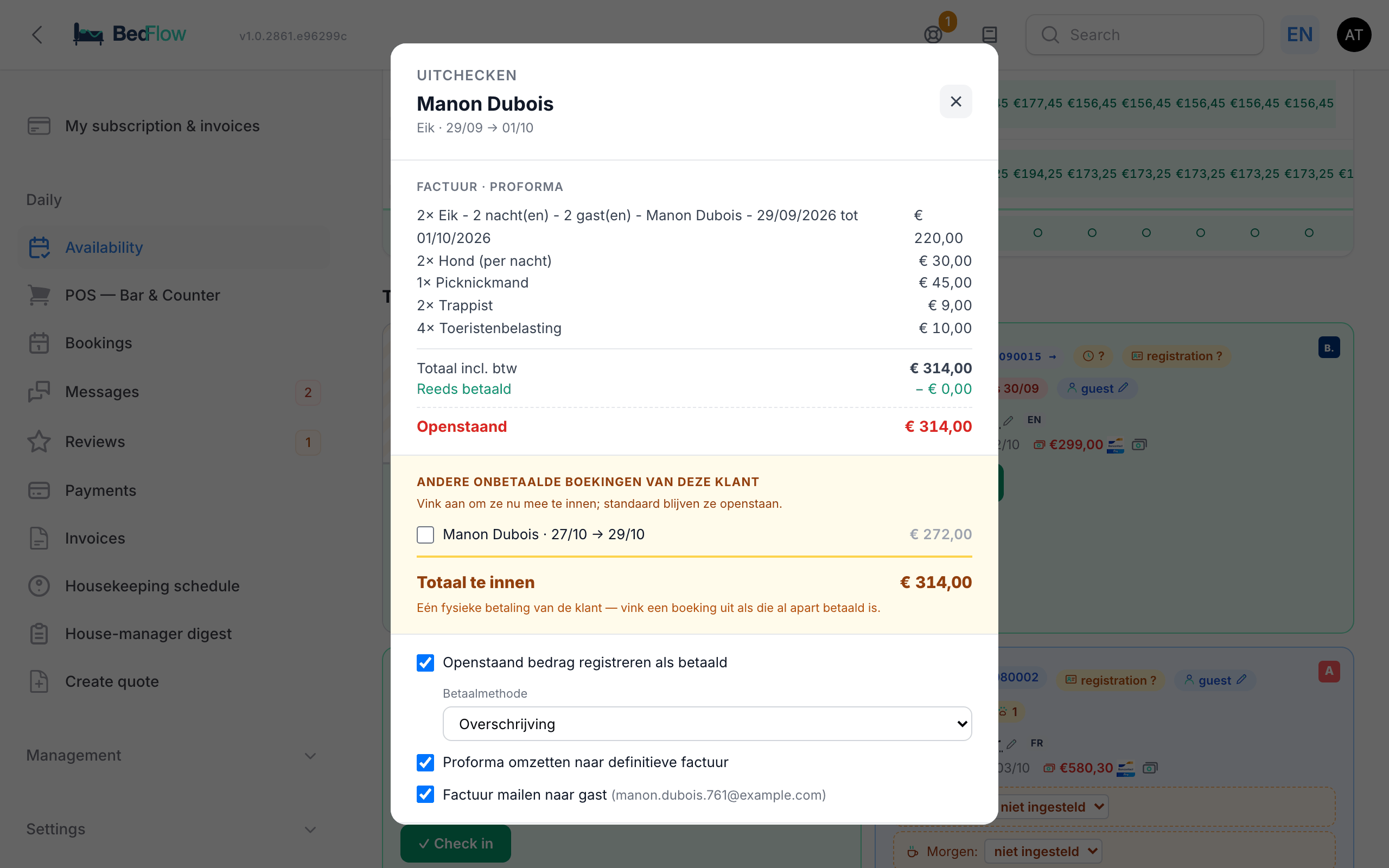
What you see
- The invoice lines, Total incl. VAT, Already paid and Outstanding (red as long as something is outstanding).
- Other unpaid bookings for this customer: if the same customer (or the same email address) has another unpaid booking, you see it here with a tick box. The tick boxes are off by default: only tick what the customer is paying now. Total to collect adds it all up into one payment.
The tick boxes
| Tick box | Default | What it does |
|---|---|---|
| Register outstanding amount as paid | On if something is outstanding | Registers a payment for the outstanding amount, with the payment method you choose. |
| Convert proforma to final invoice | On if the invoice isn't final yet | Gives the proforma a final invoice number. |
| Email invoice to guest ({email}) | On if there's an email address | Sends the invoice to the guest. Without an email address it says "(no email)"; then click the guest name on the tile to fill in an email address. |
If a customer pays by bank transfer on invoice (postpaid, set on the customer record), "register as paid" is off by default and you see a blue reminder: only register the payment once the money has come in.
The payment method
Bank transfer is selected by default. The options:
| Payment method | When |
|---|---|
| Bancontact (QR — guest scans) | Only if you've set up Bancontact. The button becomes Generate QR: the guest scans and pays. Then click Check out once more to finalise the invoice and email it. |
| Card held by {channel} (collect automatically) | Only for a booking via a channel and if your own Stripe account is connected. See below. |
| Bank transfer, Cash, Bancontact (already paid), Credit card, Stripe, Other | You register a payment that has already been made. |
Click Confirm check-out. BedFlow:
- adds open till tabs (bar, till) to the invoice;
- registers the payment;
- finalises the invoice;
- sets the booking (and all rooms on the same invoice) to checked out;
- settles the other ticked bookings;
- emails the invoice.
You get the message "Checked out" with what happened. If a step failed, it says "Checked out with errors" with the explanation.
Collecting the balance on the channel's card
If a guest from Booking.com (or another channel) leaves without paying, you can collect the outstanding amount on the card they left with the channel. Choose Card held by {channel} (collect automatically); the button becomes Collect €… + check out.
- The card number never passes through BedFlow; the payment runs through your own Stripe account.
- If the collection succeeds, BedFlow registers the payment and completes the check-out.
- If it fails (card declined, the guest's bank asks for confirmation, or the channel didn't pass on a usable card), you see the reason and the guest is not checked out. Then choose another payment method or send the guest a payment link.
To be able to collect cards from channels, your Stripe account must be connected once to the channel manager. Ask for this via Settings → Support. See also Setting up Stripe.
Checking out early or from the booking
The In house tile has no check-out button. If a guest leaves early, open the booking (Edit booking) and click Check out at the top. That window works the same way, with the tick boxes Assign final invoice number to the proforma invoice, Register outstanding amount as paid and Send invoice by email to …, and the drop-down list also includes OTA payout (Booking.com, …).
Registering a payment without checking out
If a guest pays in between (a deposit by bank transfer, part in cash), click the banknotes button next to the outstanding amount on a tile (Register payment (amount + method)):
- Amount (€): already set to the outstanding amount.
- Payment method: Bank transfer, Bancontact, Stripe, Credit card, Cash, Voucher, OTA payout (Booking.com, …) or Other. Choose OTA payout for money a channel pays out to you.
- Payment date (today by default) and Description (optional).
Click Register. If you register the payment before the departure day, the guest receives a payment confirmation; on or after the departure day, BedFlow no longer sends one. The invoice stays a proforma until you check out.
With the Bancontact logo next to the amount, you show a QR code that the guest scans with their banking app. The window says "Payment received!" as soon as the money has come in. See also Automatic payment confirmation.
Settling today's wellness
On the Wellness today tile, a session with an outstanding amount shows:
- the Bancontact logo: the guest pays straight away with a QR code;
- the banknotes button: register a payment (Bancontact by default; also bank transfer, cash, voucher …);
- + Extra (bathrobe, cava, …): choose a Product and a Quantity and click Add. It's added to the wellness proforma.
More in Wellness bookings.
What BedFlow wraps up by itself at night
Automatic check-out. Every night at 04:45, BedFlow sets bookings whose departure day has passed (up to 7 days back) and that are still confirmed or checked in to checked out. No payment is registered, no invoice is finalised and nothing is emailed. If you don't want this for your property, ask via Settings → Support.
Automatic finalisation. Every day at 18:00, BedFlow finalises the proformas of guests who left yesterday or today, if they're fully paid and there's no open till tab left. Those bookings are also set to checked out. No email is sent in the process.
Frequently asked questions
I don't see a Check in button. Today's tiles are only in the Timeline view. A property with one or two rooms opens in Month by default: switch to Timeline at the top left.
The guest already paid Booking.com. Then the booking window shows Paid via Booking.com. The money comes from Booking.com later; register that payout with the payment method OTA payout (Booking.com, …). See Payment handling per channel.
The invoice wasn't emailed. There was no email address on the customer, or the invoice couldn't be finalised. Add the email address and send the invoice from Daily → Invoices. See Invoicing.
Can I settle two bookings from the same customer together? Yes. In the check-out window, tick the other booking under Other unpaid bookings for this customer. With the Bancontact QR, however, you only collect the current booking.