The room overview — your home screen for every day
Updated on 2026-10-01
Video narrated in Dutch.
The room overview is the screen you see straight after logging in. In the sidebar it's called Daily → Availability; at the top of the page it says Room overview. At a glance you see which rooms are occupied, free or blocked, and you work through your day there: checking guests in and out, settling bills and sending messages.
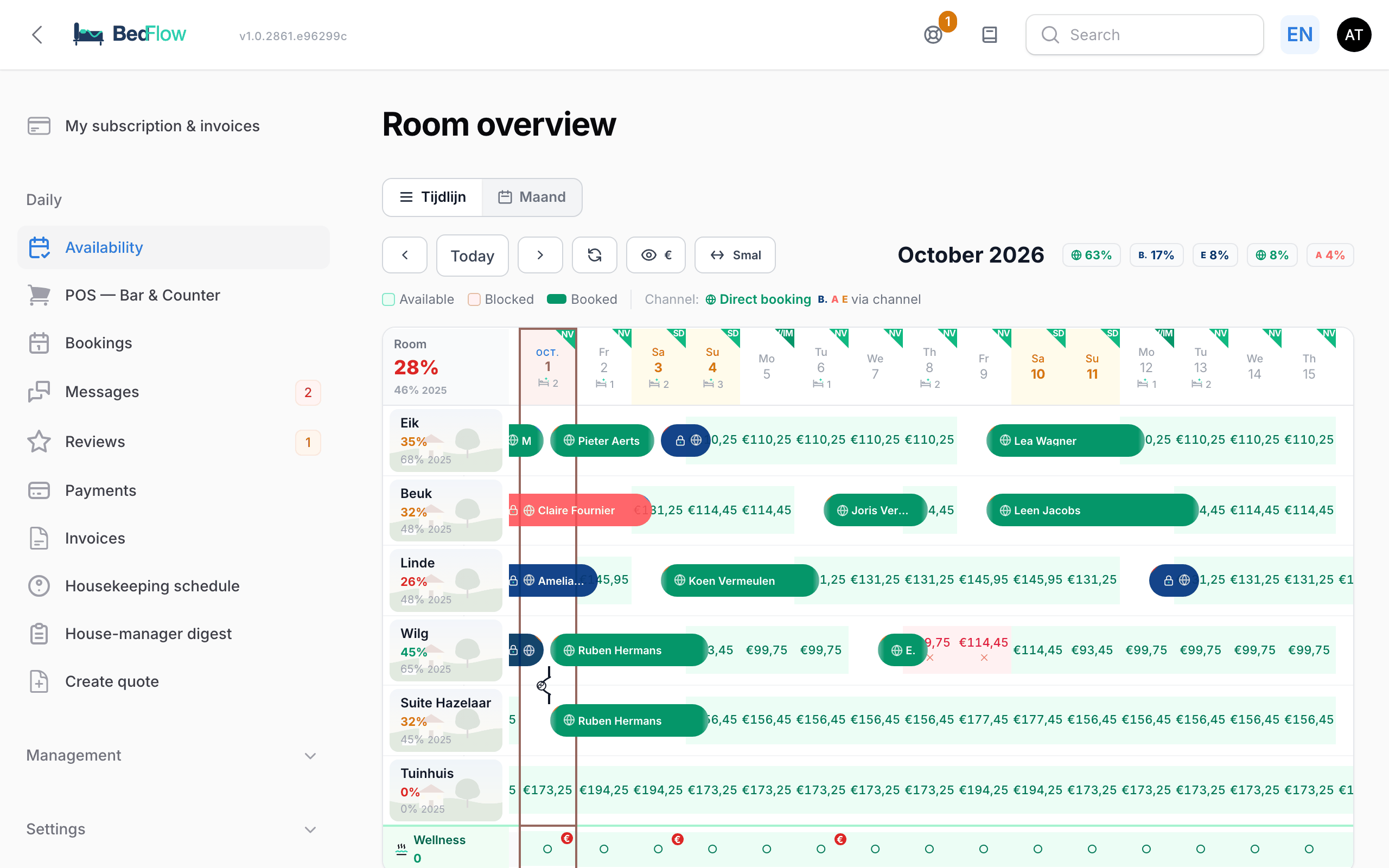
Two views: Timeline and Month
At the top left you choose the view:
- Timeline: the rooms one below the other, the days side by side. Handy from a few rooms upwards.
- Month: a month calendar with the weeks one below the other. Handy for one or two homes.
If your property has two active rooms or fewer, the room overview opens in Month by default, otherwise in Timeline. BedFlow remembers your choice per user.
The Today tiles (arrivals, departures, check-in, check-out) are only in the Timeline. If you're working in the month view, switch to Timeline to work through your day.
The timeline toolbar
| Button | What it does |
|---|---|
| ‹ and › | One month back or forward. Another month shows the 1st to the end of the month, plus ten days. |
| Today | Back to today. For the current month, the timeline shows yesterday up to five weeks ahead, with today's column in view. |
| Two circling arrows | Redraws the overview. It also refreshes by itself every 30 seconds. |
| Eye with € | Show prices or Hide prices in the free days. |
| Double arrow | The width of the day columns: Narrow, Normal or Wide. Each click goes one step further. Wider = more text on each booking. |
BedFlow remembers prices and day width per user.
Next to the month title you see the channel mix: a small chip per channel with its share of that month's bookings. Hover for the number of bookings and an estimate of the commission.
Reading the grid
Rooms and days
- On the left, each room shows its name, the occupancy of the month shown as a percentage and, if available, the occupancy of the same month last year.
- In the date header, today has a border and the weekend is amber. A bed with little stars and a number shows how many rooms need to be turned over that day (rooms with a departure).
- If you have the housekeeping module switched on, a green triangle at the top right of the date header shows the initials of who is coming to clean that day.
Free, blocked and booked days
| What you see | Meaning |
|---|---|
| Light green box with a price | Free. The price is the price per night for that room. |
| Light red box with a cross | Blocked: can't be booked, not on your channels either. |
| Coloured bar with a name | A booking, from the arrival day to the departure day. |
The booking bar
- The colour of the bar is the channel the booking came in through: green for a direct booking, dark blue for Booking.com, pinkish red for Airbnb, and so on.
- A padlock on the bar means: booking from a channel. You move it via that channel's extranet, not by dragging.
- The triangle at the top left shows the payment: green = fully paid (also if the guest already paid the channel), amber = deposit paid, red = nothing paid yet.
- The triangle at the top right shows the status: green = checks in today, blue = checked in, orange = checked out.
- Hover over a bar for a summary: guest, channel, status and payment.
- A black line with a chain link connects the rooms of a group booking.
If you use Group room types in the widget, each room type with several rooms gets a grey group row with the number of free rooms per day. See Room types with several rooms. If your property has wellness, there's a wellness row at the bottom with the occupancy of the sessions per day.
Channel badges
On today's tiles and in the channel mix, the channel is shown as a letter in a coloured square. Hover for "Booked via …".
| Badge | Channel |
|---|---|
| B. | Booking.com |
| A | Airbnb |
| E | Expedia |
| Vr | Vrbo |
| G | |
| O | OpenGDS |
| N | Natuurhuisje |
| Vp | Vipio |
| Ag | Agoda |
| H | HRS |
| C | Check24 |
| W | Weekendesk |
| Green globe | Direct booking: via your website, by phone or entered by you |
Clicking, right-clicking and dragging
| Action | Result |
|---|---|
| Click a free day | The room is blocked that day immediately, without confirmation. Another click releases it again. |
| Right-click a free or blocked day | Menu with Create new booking…, Block this day or Unblock this day, and Adjust price (current €…). |
| Right-click a date at the top | Block this day or Block range from this day… for all free rooms. |
| Click a booking bar | The booking window opens (see below). |
| Drag a bar | Move a direct booking to another room or date. |
| Drag the edge of a bar | Change the arrival or departure date of a direct booking. |
More about blocking: Blocking rooms. Entering a phone booking: Manual booking. Moving and changing dates: Changing, moving and printing bookings. A price for one day: Rate management.
The booking window
Click a booking bar (in the timeline or in the month view) and you get everything about that booking in one window.
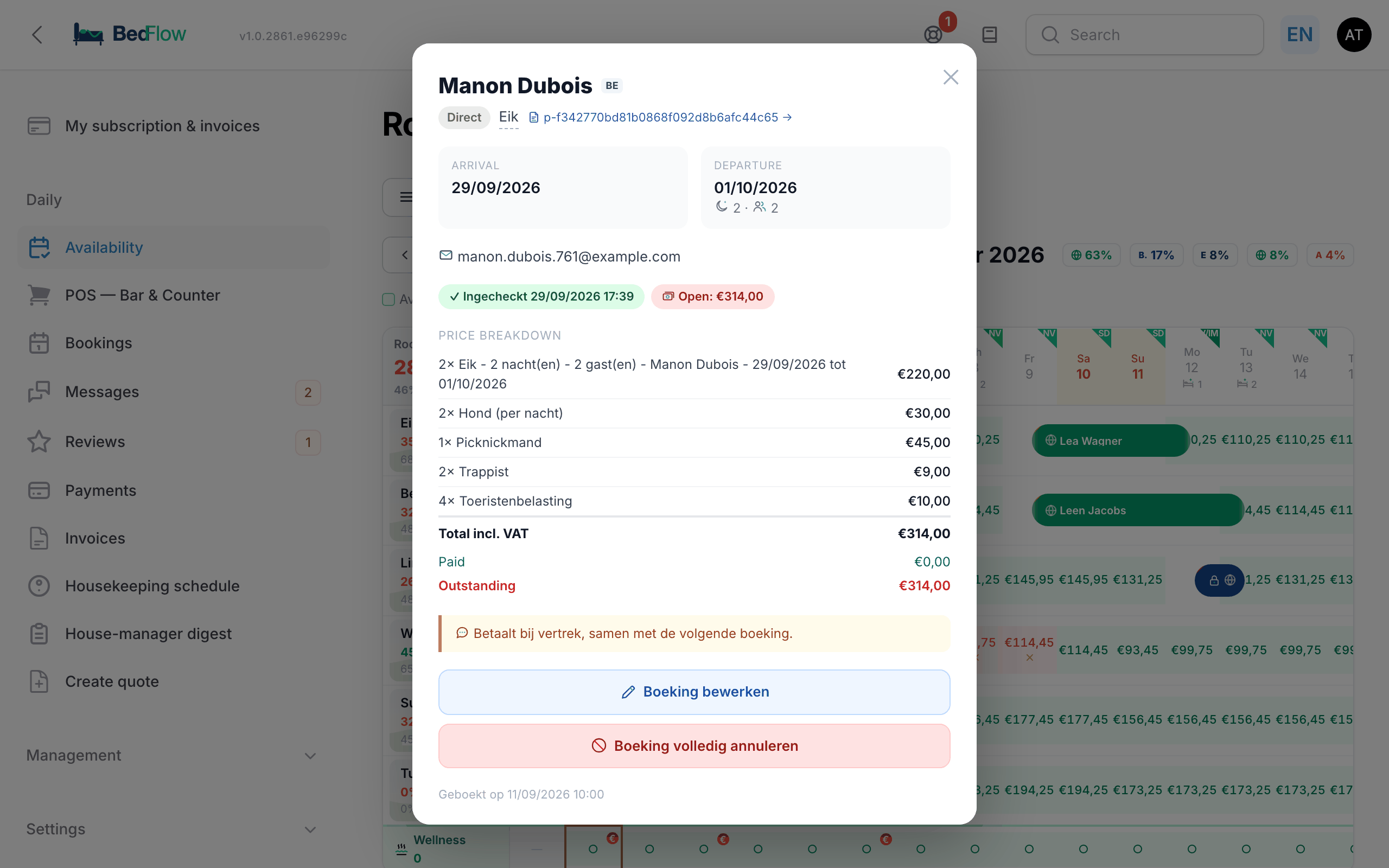
- At the top: the guest's name with their country code, the channel, the room (click to open the booking) and the invoice number (click to open the invoice).
- Arrival with the expected arrival time if known, Departure, the number of nights and guests.
- Contact: the phone number, the green WhatsApp button (Send WhatsApp message) and the email address.
- Status: "Checked in" with date and time, or "Not checked in yet", and the payment: Paid, Paid via {channel} (the guest already paid Booking.com or another channel) or Open: €….
- Price breakdown: the invoice lines, the total, what has already been paid and what is still outstanding.
- The channel's reference and the guest's remark.
- Guest unreachable through the channel: shown if the channel didn't open a chat for this guest. Call or WhatsApp the guest yourself.
- One booking — {n} rooms: for a booking of several rooms. The proforma and deposit apply to the whole booking.
At the bottom there are two buttons:
- Edit booking: opens the booking. There you can change, among other things, the internal note, the dates and the invoicing details.
- Cancel booking entirely: first asks Confirm cancellation?. With Yes, cancel the booking is set to cancelled, the dates are released (on your channels too) and the guest receives a cancellation email (and a WhatsApp message if you've connected WhatsApp). A booking from a channel is best cancelled via that channel.
Sending a WhatsApp message
The green WhatsApp button is in the booking window and on today's tiles, for every guest with a phone number. To actually send, WhatsApp must be connected (see WhatsApp via TextMeFlow).
The window shows the number (you can change it) and Quick messages in the guest's language:
- Room ready, Checkout, Breakfast and, for a property with wellness, Wellness: fill in a ready-made text, which you can still adjust.
- Welcome: asks whether you want to check the guest in and immediately send the full welcome message with the link to their guest page. After you confirm, both happen.
Type or adjust the text and click Send. BedFlow remembers a changed number once the message has gone out.
Today
Below the grid (only in the timeline) is the Today — {day and date} block with a tile for each guest arriving, staying or leaving today. The colour tells you what needs doing:
| Tile | Colour | What you do with it |
|---|---|---|
| Changeover | Orange on top, green below | The same room: at the top the departing guest (check out), at the bottom the new guest (check in). These tiles come first. |
| Arrival | Green | Check in. |
| In house | Blue | Add invoice lines, note breakfast. |
| Departure | Orange | Check out and settle the bill. |
If guests choose a breakfast time, Breakfast today and Breakfast tomorrow appear at the top with the earliest time. "Breakfast today" disappears after 11:30.
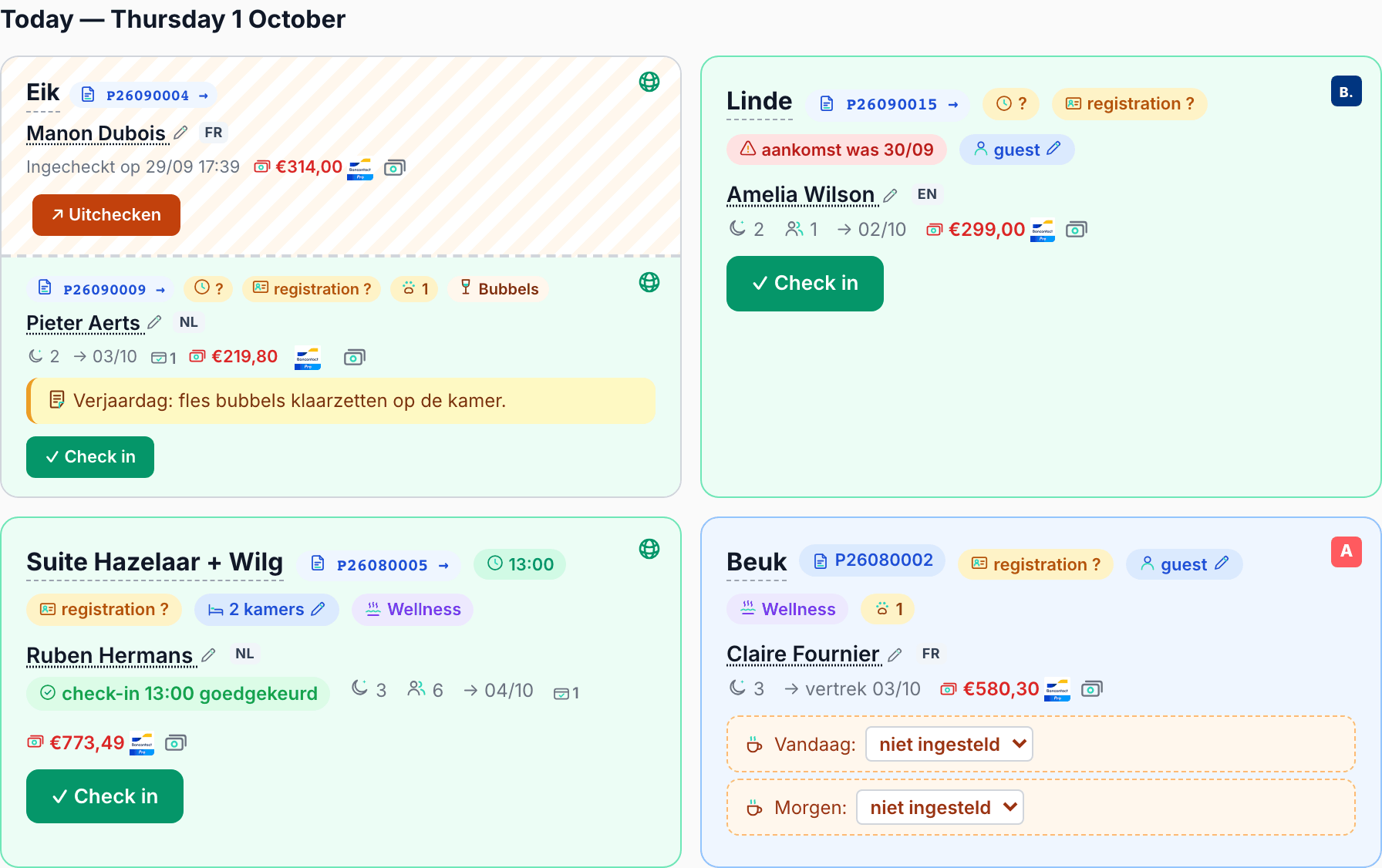
The arrival tile
| Element | Meaning |
|---|---|
| Channel badge (top right) | Which channel the guest booked through. |
| Room name | Click to open the proforma in a new tab (or the booking, if there's no proforma yet). |
| Proforma number (invoice icon) | Click to go to the invoice, e.g. to add lines. |
| Arrival time (clock) | Green with a time: the time the guest gave. Amber with a ?: no time known yet; ask quickly via WhatsApp. |
| registration done / registration ? | Only if you use guest registration: has the guest already completed the guest register? See Guest registration. |
| arrival was dd/mm (red) | A guest who was due to arrive on an earlier day and hasn't checked in yet. They stay among the arrivals until you check them in or until their departure day. |
| {N} rooms or guest | Click to fill in the name, WhatsApp number and language of whoever is sleeping in each room (Guests per room window). See Manual booking → Guests per room. |
| Wellness, paw, wine glass | Booked extras: wellness, dog(s), bubbly in the room. |
| Guest name (with pencil) | Click to correct the customer details: First name, Last name, Company name, Email, Mobile, VAT number. They appear on the invoice exactly like this. |
| Language chip | The language of the messages (NL, FR, EN, DE). If it shows a country code, e.g. TR, BedFlow communicates in English; hover for the explanation. |
| Mobile number and WhatsApp button | Call or send a WhatsApp message. |
| check-in … requested / approved / denied | The guest requested an arrival time outside your regular check-in hours. See Check-in, check-out and settling the bill. |
| Moon, people, arrow | Number of nights, number of guests, departure date. |
| Bank card with a tick | The number of payments; hover for the list. |
| Outstanding amount (red) | With the Bancontact logo (QR for the guest) and the banknotes button (Register payment). If everything is paid, it shows "paid" in green. |
| Yellow line | The booking's internal note. Only for you and your team; the guest never sees it. |
| White and amber box | The guest's remark and their dietary requirements. |
| Check in | See Check-in, check-out and settling the bill. |
On the arrival half of a changeover tile two more warnings can appear: no WhatsApp (dd/mm) (a WhatsApp message to this guest wasn't delivered) and no OTA chat (the channel didn't open a chat with this guest). Call or WhatsApp the guest yourself.
The "In house" tile
- Click the proforma number to open the Edit invoice lines window. For each line you see Description, Quantity, Unit price incl. and VAT %. Add a line with + Add line, or choose a product from your list with + Product from list…, and click Save. BedFlow recalculates the totals and refreshes the PDF.
- If you serve breakfast, you choose each guest's breakfast time for today and tomorrow here.
- The outstanding amount and the buttons to settle the bill are here too.
The departure tile
Shows when the guest checked in, the outstanding amount and the orange Check out button. See Check-in, check-out and settling the bill.
Wellness today
If your property has wellness and there are sessions today, there's a Wellness today block with, for each session, the time, the number of people, the payment status and the + Extra (bathrobe, cava, …) button. Settling the bill happens directly on the tile, see Check-in, check-out and settling the bill.
The month view
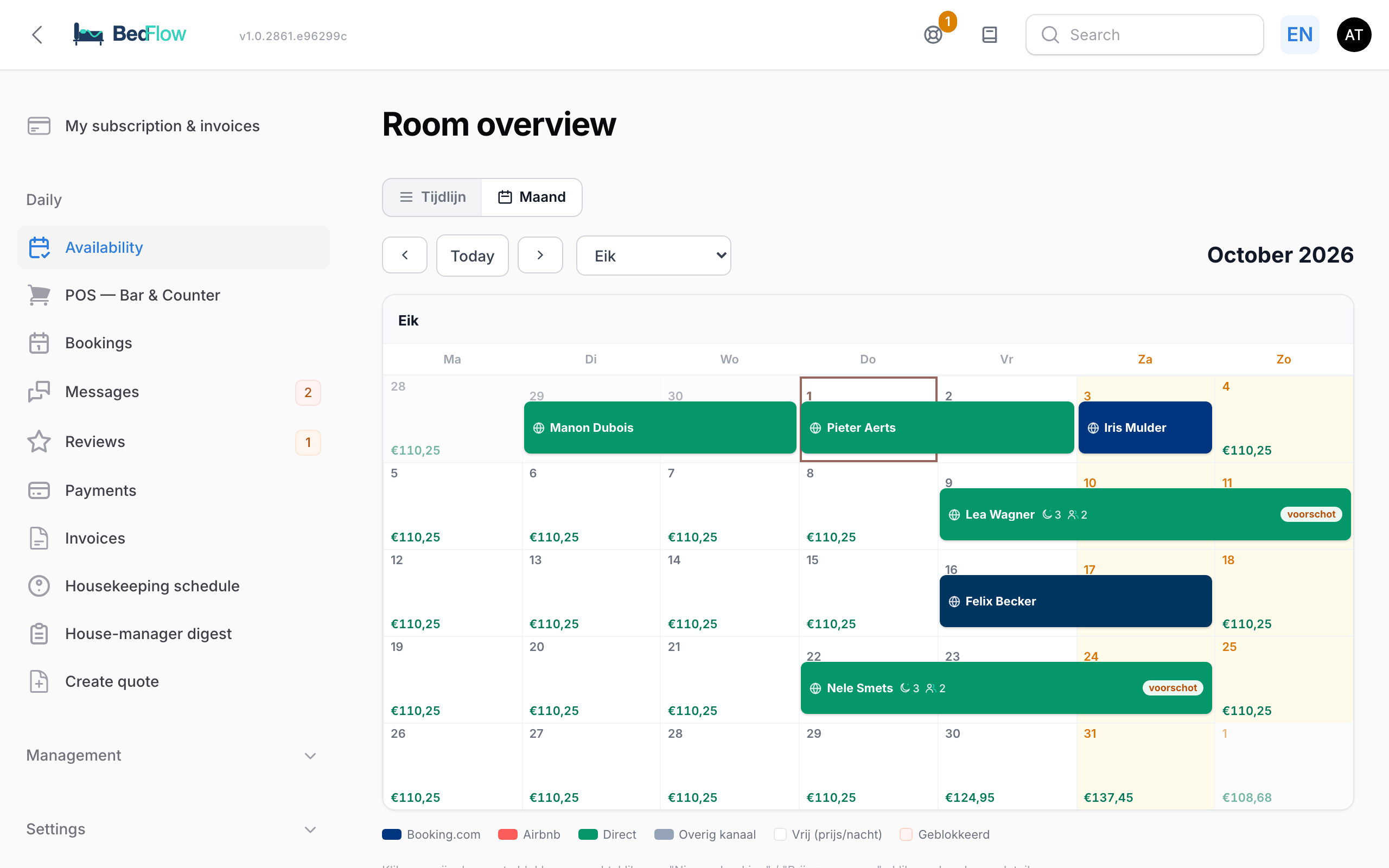
- Browse with ‹, Today and ›. If you have more than two rooms, you choose the room from a drop-down list; with one or two rooms there's a calendar for each room.
- A free day shows the price, a blocked day "Blocked".
- Each booking is a band in the colour of the channel with the guest's name. If there's enough room (three days or more in that week), you also see the number of nights and guests, the extras and the payment status: paid, deposit or the outstanding amount.
- Clicking and right-clicking work as in the timeline. Click a band for the booking window.
Good to know
- The room overview always shows one property. If you manage several properties, switch via the property selector at the top of the sidebar.
- If your account only has read permissions, you see everything, but you get the message "Read-only access" whenever you try to change something. See Extra users and permissions.
- On your phone you do the same in the BedFlow app.