Connecting Booking.com
Updated on 2026-10-01
Connecting Booking.com to BedFlow
Settings → Integrations → Channels → Booking.com
This guide takes you through the full connection in 6 steps. Allow 24 to 48 hours of lead time — not because it takes long on our side, but because Booking.com has to process the switch itself.
Prerequisite: you have an active Booking.com extranet account for your accommodation. Don't have one yet? First create an account at join.booking.com and wait until Booking.com has approved your listing. Only then can we connect. In BedFlow you have at least one room with a base price.
Good to know beforehand
- Booking.com allows only one channel manager at a time. As soon as you choose our connection (step 2), your old system — e.g. Cubilis — stops sending prices and availability. So only take that step once BedFlow is ready: rooms, prices and (if you're migrating) your existing reservations. Coming from Cubilis? First read Migrating from Cubilis (Lighthouse).
- During the switch, your accommodation may temporarily be impossible to find or book on Booking.com, until the new prices and availability have come through. That is normal and fixes itself as soon as everything is in place.
- Only the owner can do the step in the extranet. Booking.com confirms the choice with an SMS code sent to the account owner. Make sure that person is present (or reachable) when you start.
- Fill in your house rules and cancellation policy under Settings → My property → Content & policies (OTA / Google). See Content & policies.
What do you need?
| Item | Where to find it |
|---|---|
| Booking.com Hotel ID | A 7- or 8-digit number in your extranet |
| Login for admin.booking.com | Your extranet email and password |
| The account owner | Booking.com sends an SMS code that only the owner receives |
Step 1 — Look up your Hotel ID
-
Log in to admin.booking.com.
-
At the top left you see the name of your accommodation and below it a number in light grey. That is your Hotel ID (e.g.
10056019).Alternatively: go to Account → Property page. The Hotel ID is also in the web address of that page (
…/property/?hotel_id=10056019). -
Copy this number — you're about to paste it into BedFlow.
Step 2 — Choose Channex as your connectivity provider (in the extranet)
This is the step that is skipped most often — and without it, every connection test fails with "Incorrect Connection".
- Log in to admin.booking.com.
- Go to Account → Connectivity provider.
- Search for "Channex" — type the name in full, otherwise the search won't find it. Channex is the channel manager BedFlow works with; you only see that name in this step and in the connection window.
- Click Next and accept the XML Service Agreement.
- Confirm with the SMS code Booking.com sends to the account owner. Only the owner can complete this step.
From this moment, your old channel manager no longer sends prices or availability to Booking.com. That is exactly the intention — but it explains why you only take this step once BedFlow is ready.
Step 3 — Enter your Hotel ID in BedFlow
- In BedFlow, go to Settings → Integrations.
- In the Channels category you'll find the Booking.com tile. Click Settings.
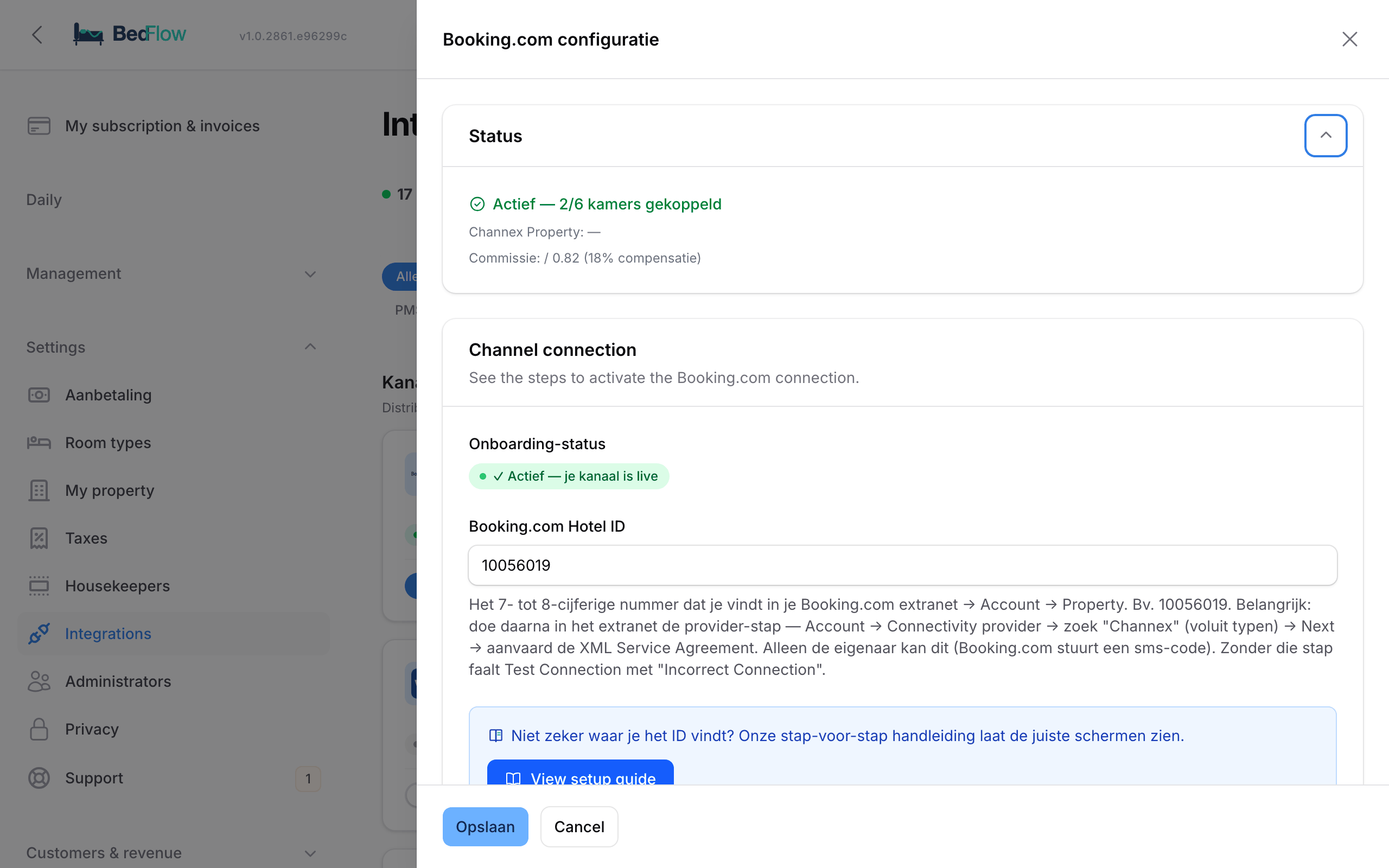
- In the Channel connection section is the field Booking.com Hotel ID. Paste the number from step 1 here.
- Click Save.
The blue Connect in Channex button now appears next to the onboarding status. Click it.
Is this your first channel? Then BedFlow puts your accommodation on the channel manager itself at that moment, with your room types and prices. That first time, BedFlow also switches on the channel and all your active rooms, so that you can link every room in step 4. If you don't want to offer a room on Booking.com, untick it afterwards in Room mapping. This happens in the background; you don't need to do anything for it.
Step 4 — Test the connection and map your rooms
A Channel connection window opens within BedFlow, with the channel manager's connection form. You only see the form, no other menu.
-
"General Settings" tab — Channel = "Booking.com", Title = "Booking.com", Currency = EUR, and your Hotel ID. Then click Test Connection.
"Incorrect Connection"? Then step 2 (connectivity provider) hasn't been done yet, or hasn't been processed on Booking.com's side yet. Do that step first; sometimes processing takes a few minutes. Then test again — the Hotel ID itself is almost never the problem.
-
"Mapping" tab — required. For each BedFlow room type and each rate plan, link the right Booking.com room. A room or rate without a mapping is not sent.
-
Then choose Actions → Activate at the top to activate the channel.
-
At the bottom of the window, click Done — close and refresh status.
BedFlow now finds the connection and switches it on. Do you get Channel discovered — mapping not yet complete? Click Connect in Channex again, complete the Mapping tab and click Done — close and refresh status again.
Forgot to click "Done"? No problem — BedFlow links the connection automatically within a few minutes.
Step 5 — Check the status in BedFlow
Go back to Settings → Integrations → Booking.com → Settings.
The Onboarding status should now show Active — your channel is live. In the Room mapping section you can see how many Booking.com rooms BedFlow has found ("… OTA room(s) discovered").
Still on Waiting for confirmation via the OTA extranet after 4 hours? Click Refresh status or contact us. Error messages appear below the status.
Step 6 — Check the room mapping in BedFlow
Now that Booking.com knows who you are and the channel manager knows which rooms Booking.com sees for you, you check the mapping on the BedFlow side: which BedFlow room belongs to which Booking.com room?
- In the same window, scroll to Room mapping.
- For each BedFlow room, choose the matching Booking.com room type in the OTA room drop-down.
- Switch on Active for every room you want to offer on Booking.com.
- Click Save.
BedFlow now starts a first synchronisation (can take up to 5 minutes for large accommodations) and sends your availability and prices for the next 365 days.
What happens after activation?
| What happens in BedFlow | Effect on Booking.com |
|---|---|
| New booking via your website or entered manually | The room closes on Booking.com for those nights |
| Price changed under Management → Rates | The new price appears on Booking.com (within about 30 seconds) |
| Room blocked on Daily → Availability | No longer bookable on Booking.com |
| New booking via Booking.com | Comes into BedFlow and appears in your calendar with a proforma |
Frequently asked questions
Test Connection keeps giving "Incorrect Connection" — what now? In this order: (1) is the Hotel ID correct? (2) has step 2 — Account → Connectivity provider → Channex — been completed and confirmed with the SMS code? Only the owner of the Booking.com account can do that. (3) Wait a few minutes and test again; Booking.com sometimes needs a moment to process the choice. Still nothing? Email support@bedflow.eu — on our side we can see straight away where it gets stuck.
My accommodation is briefly not visible or bookable on Booking.com during the switch. Is that a problem? No, that is normal. Between the moment your old channel manager stops and the moment the new prices and availability have come through, Booking.com may temporarily hide your accommodation. That fixes itself as soon as the first synchronisation is done.
What happens to my old channel manager (e.g. Cubilis)? As soon as you choose Channex in step 2, your old system stops sending prices and availability to Booking.com — Booking.com only allows one channel manager at a time. You cancel your subscription with your old supplier yourself.
Do my existing Booking.com reservations come along? The safest route is the reservation export from your old system — see Migrating from Cubilis (Lighthouse). Reservations Booking.com sends through later anyway are recognised by their reservation code and merged instead of duplicated.
Do I still need to maintain my prices elsewhere? No. BedFlow is your single source. Only change prices here — not in the Booking.com extranet, otherwise the next synchronisation overwrites your change there.
What if I add a new room in BedFlow? Create the room, open the Booking.com tile with Settings, set the room to Active in Room mapping and click Save. Then click Map rooms and link the new room in the Mapping tab. See Adding rooms or remapping later.
What if I want to pause Booking.com temporarily? Switch off the toggle on the Booking.com tile (or Channel active in the window). BedFlow then stops sending. Booking.com keeps whatever was last sent to it — nobody cancels anything. When you switch the toggle back on, synchronisation continues.
Is the commission calculated correctly? Yes. The Divisor in the Commission section (0.82 by default for Booking.com = 18% commission) makes sure the price on Booking.com is higher than your own price, so that you still end up with your own price after their commission. You'll see the same rule under Management → Rates → Rate profiles (type Channel).
The guest pays Booking.com (Payments by Booking.com). Do they still get a payment link from me? Not if you switch on Channel collects payment in the window. See Who collects the payment?.
I have several accommodations — do I have to do this for each one? Yes. Each accommodation has its own Booking.com Hotel ID and its own extranet. Choose the right property in the property switcher and go through this guide for each property.
Need help?
Email support@bedflow.eu, including the name of your accommodation in BedFlow. On our side we can check the connection status and see straight away where it gets stuck.