Changing, moving and printing bookings
Updated on 2026-10-01
All your bookings are under Daily → Bookings, tab Bookings. If your property has wellness, the Wellness bookings tab is next to it (see Wellness bookings).
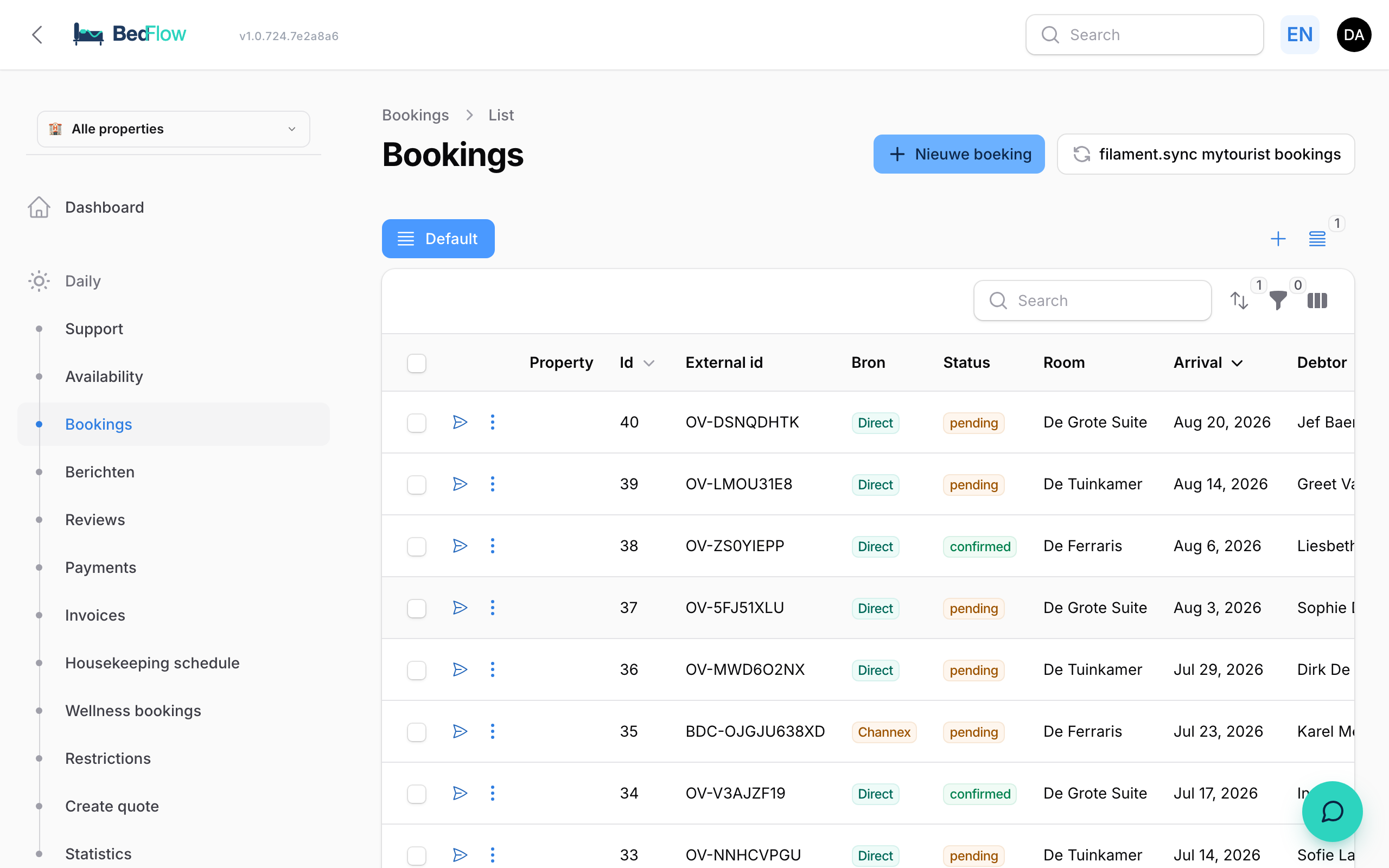
The bookings list
- The list is sorted by arrival date, newest first.
- The Source column shows Direct (your own site, by phone or entered by you) or Channex (via a channel such as Booking.com).
- In the search field you search by booking number or by customer: name, email or phone number.
- With the filter button you filter by customer, room or status, among other things. A combination of filters you use often can be saved as a view.
- At the top right: New booking (see Manual booking) and Print list.
For each booking, the three dots open a menu with, among other things, View, Edit, Send email and Move to room.
Printing a list
- Print list opens, in a new tab, a printable list of all non-cancelled bookings of your property, with Room, Guest, Arrival, Departure and Status, sorted by arrival. The print dialog opens by itself. The list doesn't take over your filters and search term.
- If you only want certain bookings, tick them in the list and choose the bulk action Print selected. Then exactly those bookings end up on paper, cancelled ones included.
Viewing a booking
Click a booking or choose View. The detail page shows, among other things:
- Overview: status, source, channel, arrival, departure, nights and total price;
- Guest remarks and the Internal note;
- Arrival request: an arrival time the guest asked for, with its status;
- Guest: name, customer, Invoice to, email, phone, country and language;
- Guest registration (accommodation register), if you use it;
- Stay and, for each room, the occupancy, the rate and the rate option;
- Financial: total, already paid, outstanding and deposit.
Editing a booking
Click Edit (or Edit booking in the room overview). There you can change, among other things:
- Status;
- Guest remarks and Internal note (see below);
- Arrival request: the requested time and the Request status (Pending, Approved, Denied);
- Guest: guest name, a separate WhatsApp number, country and language of the messages;
- Invoice to: who the invoice goes to (see Manual booking → Who is invoiced?);
- Stay: number of guests, bed preference, smoking;
- Financial: among other things Payment not required (skips the payment deadline, e.g. for a regular business customer).
Click Save changes.
You can't change Arrival and Departure directly here. That's what the Extend / change dates button is for.
Internal note
A note for you and your team, e.g. "arriving late, key in the letterbox" or "allergic to nuts". The guest never sees it. It appears as a yellow line on today's tiles in the room overview and in the house-manager digest.
Changing the dates or extending the stay
- Open the booking with Edit.
- Click Extend / change dates at the top.
- In the Change / extend dates window, choose the new Arrival and Departure.
- Under Price comparison you see the current price and the new price (including any length-of-stay discount, excluding tourist tax).
- Leave Apply new price on to recalculate the invoice, or switch it off to leave the invoice as it is.
- Click Apply.
BedFlow checks whether the room is free. If another booking or a block is in the way, you get "Change refused" with what's in the way.
A booking from Booking.com or another channel is best changed via that channel; the change then arrives in BedFlow automatically.
In the room overview you can also change the dates of a direct booking by dragging the edge of the bar. In the Adjust booking window you then choose Apply new price (€…) or Keep old price (€…).
Moving to another room
Is a room not ready, or do you want to upgrade a guest? There are four ways.
| Way | Where | Good to know |
|---|---|---|
| Move to room | Bookings list, three dots | Also works for bookings from Booking.com and other channels. The price stays the same and the digital key follows the guest to the new room. BedFlow checks whether the room is free of other bookings. Not for a booking with several rooms. |
| Change room | At the top under Edit | Also for a booking with several rooms: first choose which room. The price stays the same. Check yourself whether the new room is free. |
| Switch room | At the top under View | Only if you use Group room types: another room of the same type, marked "free" or "occupied". See Room types with several rooms. |
| Dragging | Room overview, timeline | Only for direct bookings with one room. The Move booking window shows the price difference; confirm with Move. |
For a booking from a channel, the reservation at the channel stays on the original room. The old room becomes free again on the channel: block it separately if it hasn't been cleaned yet.
Sending (or resending) one email
Want to send or resend an automated email to the guest, e.g. the confirmation once you have their email address? Choose Send email (in the list, or at the top when viewing or editing).
- Template: one of your property's automated emails, with when it normally goes out.
- To: already set to the booking's email address; you can change it without changing the booking.
- Guest language is shown for information.
Click Send now. The email goes out immediately and appears in the communication log. BedFlow doesn't send a payment reminder for a booking that's already paid. This action only appears if your property has active automated messages (see Guest journey overview).
Creating a proforma
If a booking doesn't have an invoice yet (e.g. after transferring bookings from another system), the Create proforma button is shown at the top. BedFlow creates a proforma with your property's next number. For several bookings at once: tick them in the list and choose the bulk action Create proformas. Bookings that already have an invoice and cancelled bookings are skipped.
Cancelling a booking
- In the room overview: click the booking and choose Cancel booking entirely → Yes, cancel. The booking and the invoice are set to cancelled, the dates are released (on your channels too) and the guest receives a cancellation email, plus a WhatsApp message if you've connected WhatsApp.
- When editing: set the Status to Cancelled and click Save changes. The dates are released, but no cancellation email is sent to the guest.
A booking from Booking.com or another channel is cancelled via that channel; the cancellation arrives in BedFlow automatically.
Frequently asked questions
Where do I find the payment link for a guest? If the booking requires a payment, the payment link is in the confirmation email. Resend it with Send email. The guest can also pay via their guest page.
Can I move a booking that consists of several rooms? Yes, with Change room when editing: you first choose which room of the booking moves. Dragging and Move to room only work for bookings with one room.