Editing WhatsApp templates
Updated on 2026-10-01
Management → Messages → Message templates → group WhatsApp templates
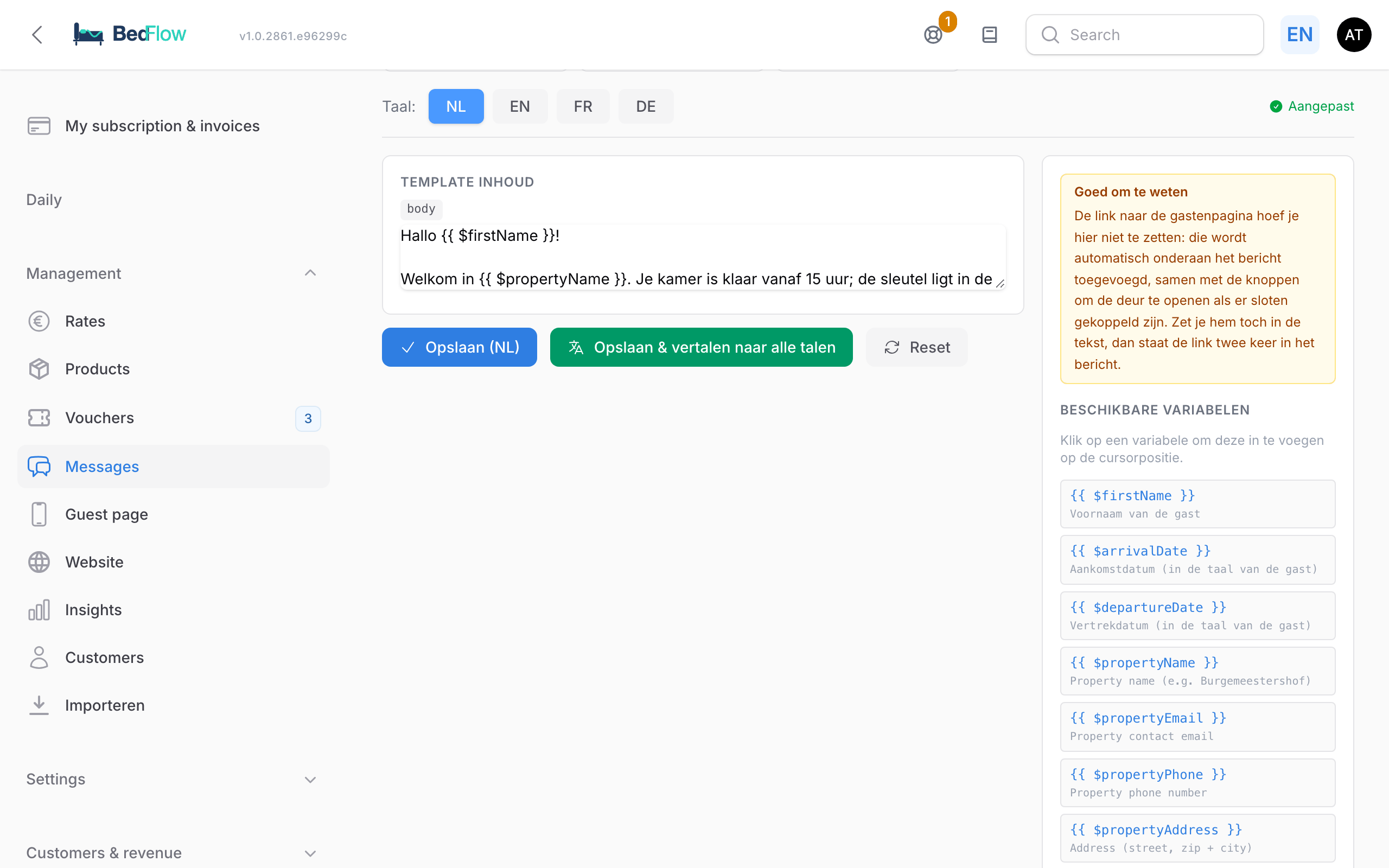
All automated WhatsApp messages BedFlow sends to your guests are sent from templates, just like the emails. You edit them on the same page as the email texts, in the WhatsApp templates group.
Tip: on Management → Messages → Automated messages, the timeline shows which WhatsApp message goes out when. Click a green WhatsApp card there and you go straight to the right template editor. See Automated messages — the guest journey.
Which templates are there?
| Template | When it goes out |
|---|---|
| Welcome on the arrival day | At 09:05 on the arrival day, if the welcome email on the arrival day is switched on |
| Welcome at the front desk | When you click Check in yourself. Empty = the same text as "Welcome on the arrival day" |
| Pre-arrival (2 days before) | At 10:00, two days before arrival, with the check-in times |
| Payment received (in full) | After full payment |
| Deposit received | After a deposit, with the remaining balance |
| Booking expired | When an unpaid booking expires |
| Booking cancelled | After a manual cancellation in the planner |
| Quick button: room ready, Quick button: checkout, Quick button: breakfast | When you choose the quick button in a booking's WhatsApp window |
| Quick button: wellness | Same, if you offer wellness |
| Housekeeping: daily overview and Housekeeping: personal link | To your cleaning staff, not to guests |
| Wellness booked (payment link), Wellness paid, Wellness added to stay, Wellness expired, Wellness balance reminder | For wellness guests, if you offer wellness |
WhatsApp messages only go out if your property has a WhatsApp connection and the guest has a mobile number. See WhatsApp via TextMeFlow.
The link to the guest page
You don't need to add it yourself. For the two welcome messages and Pre-arrival, BedFlow automatically places the booking's personal guest page at the bottom of the message. With the welcome message, the buttons to open the door are added too, if you have connected smart locks.
That's why there is no variable for it in the panel on the right: each guest gets their own link, which can't be fixed text in a template. If you add a link anyway, it appears twice in the message. In the editor, the Good to know block reminds you of this.
Want the link in a message you type yourself? In Daily → Messages, insert it with the Guest page variable above the text box.
Editing a template
- Open Management → Messages → Message templates and click a template in the WhatsApp templates group.
- Choose the language under Language: NL, EN, FR or DE. Each language has its own text; the guest automatically receives theirs.
- Edit the text. Leave variables such as
{{ $firstName }}or{{ $propertyName }}in place. Click in the Available variables panel on the right to insert one. - Click Save (NL): your text takes effect immediately. Or click Save & translate into all languages to have DeepL translate your text into the other languages. Do read through those translations afterwards.
On the right you see a Preview of the text as a chat message. There is no subject: WhatsApp has no subject line.
Per property
A change only applies to the property you are working in. As long as you don't change anything, BedFlow uses a neutral default text with the name of your property in it. On the timeline, a template you changed gets the label customised.
Put property-specific information, such as "the entrance is around the corner", your parking instructions or your wellness, in the template yourself. Then every guest gets your text, in their language.
Reset puts the selected language back to the default text.
Your own canned responses
The quick buttons in the planner are fixed: you can edit their text, but you can't add new ones. If you want your own canned responses, for example different check-in times for one day, create them in Daily → Messages:
- Click Manage templates.
- Click Add template, and enter a button label and a message text.
- Click Save templates.
You can create up to 30. Above the text box are variables such as First name, Arrival, Check-in from, Wifi password and Guest page. They are filled in with the details of the booking you are sending the message for. More in Guest messages.
Sending a message to a single guest
- Daily → Availability: click the green WhatsApp icon on the booking, choose a quick message, adjust the text if needed and send.
- Daily → Messages: choose the conversation, click your template and send. This also works in the chat with Booking.com and Airbnb guests.