Message templates — the texts of your emails
Updated on 2026-10-31
Management → Messages → Message templates
Every automated email and every automated WhatsApp message is sent from a template. On this page you edit those texts, per language (Dutch, English, French, German, Portuguese, Italian). Your changes only apply to the property you are working in.
Which email goes out when is something you set in the tab next to it: Automated messages.
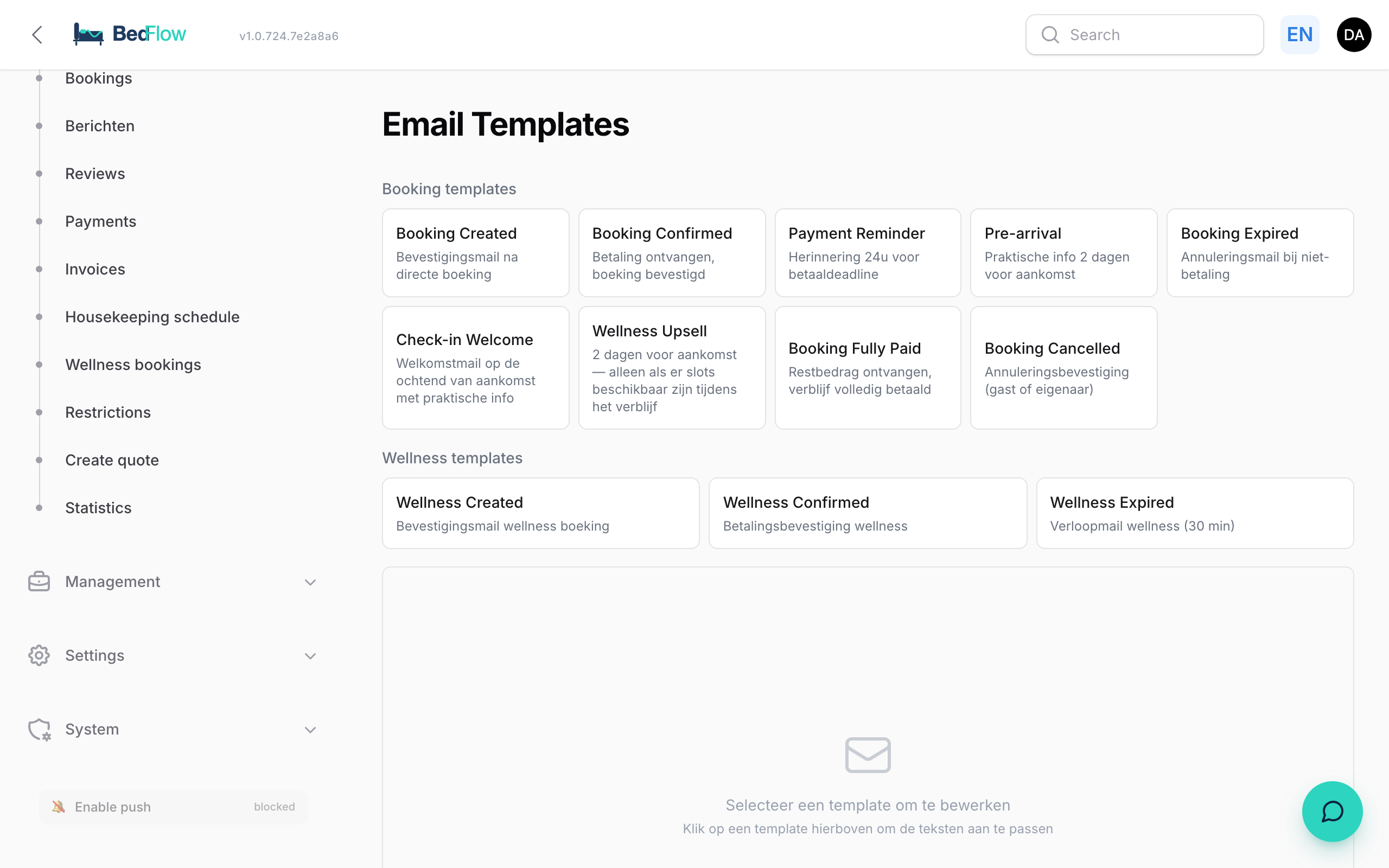
What's on the page?
From top to bottom:
- Sign-off in guest emails: the name below the closing line of every guest email.
- Review link (e.g. Google): the link for the review request after the stay.
- The templates, in four groups: Booking templates, Invoice templates, Wellness templates and WhatsApp templates. Each template shows its name and a short explanation. If you have customised a template, you see the languages you changed.
The WhatsApp templates are explained in Editing WhatsApp templates.
The main email templates
| Template | What it's for |
|---|---|
| Booking Created | Confirmation after a direct booking, with a payment link or bank transfer details |
| Booking Confirmed | Payment received, booking confirmed |
| Booking Fully Paid | Remaining balance received, stay paid in full |
| Payment Reminder | Payment reminder |
| Pre-arrival | Practical information before arrival |
| Check-in Welcome | Welcome email on the morning of arrival |
| Review Request | Request for a review after the stay, with a button and a QR code |
| Wellness Upsell | Offers wellness two days before arrival, only if there is availability |
| Booking Expired | Booking expired because it wasn't paid |
| Booking Cancelled | Cancellation confirmation |
| Invoice Finalized | Final invoice after check-out, with PDF. Without a stay, such as for a gift voucher, the fields purchase_title, purchase_intro and purchase_farewell apply: they thank the guest for the purchase |
| Quote Sent | Quote with a button to the quote page |
| Payment Request | Friendly payment request with the outstanding balance and a payment button |
Editing a template
- Click the template. The editor opens below the list.
- Choose the language under Language: NL, EN, FR, DE, PT or IT. On the right you see Default (not yet customised) or Customised.
- Edit the Subject: the line the guest sees in their inbox.
- Under Template content, edit the text parts. Each part has its own box, with the name of the part above it (e.g.
intro,checkin,closing). - Click Save (NL) (the button names the language you are working in). Your change takes effect immediately.
On the right is the Preview of the email. The Preview link at the top opens it in a new tab.
Variables
The Available variables panel on the right shows which details you can insert. Click in a text box and then on a variable: it is inserted where your cursor is. When the message is sent, BedFlow fills them in with the details of the booking and your property.
There are two kinds, and you leave both unchanged:
| Kind | Example | What it fills in |
|---|---|---|
| Between double curly braces | {{ $guestName }} |
Guest's name |
{{ $arrivalFormatted }} |
Arrival date, in the guest's language | |
{{ $totalFormatted }} |
Total amount | |
{{ $propertyName }} |
Name of your property | |
{{ $unitAddress }} |
Address of the booked house or room | |
| With a colon | :from and :to |
Start and end of your check-in times |
:before |
Latest check-out time | |
:hours |
Number of hours left to pay |
Which variables are available differs per template. The panel only shows the ones that work with this template. Preferably write the name of your property as {{ $propertyName }} rather than typing it out: that way it stays correct, in the translations too.
Some templates have a Good to know block. It shows what BedFlow adds to the message itself, for example the link to the guest page.
Back to the default text
Click Reset. The selected language gets BedFlow's default text back.
Automatic translation
Write your text in one language and click Save & translate into all languages. BedFlow saves your text and has DeepL translate it into the other five languages, Portuguese (European Portuguese, as spoken in Portugal) and Italian included. The variables are not translated.
Do read through the translations: click EN, FR, DE, PT and IT and adjust where needed. DeepL may translate a particular choice of words or a brand name differently from how you'd like.
The default texts
As long as you don't change anything, BedFlow uses neutral default texts with the name of your property in them.
- Check-in and check-out: the times come automatically from Settings → My property → Check-in / check-out times, or from the booked house's own times if you set them per unit.
- Cancellation and parking: in the confirmation email, the
cancelandparkingparts are empty by default. Empty means: no line in the email. Fill them in yourself if you want to say something about them. - Breakfast and wellness: tips about breakfast or wellness only appear if your property offers them.
Sign-off
Every guest email ends with a closing line and a name below it. By default, that is the name of your property.
- At the top, under Sign-off in guest emails, enter your own name, for example "Anna & Tom - B&B De Linde".
- Click Save sign-off.
The sign-off applies immediately to all automated guest emails from this property, in every language, including the preview. Leave it empty = the name of your property.
Review request after the stay
The Review Request template asks your guest for a review after their stay, with a button and a QR code leading to your review page.
- At the top, under Review link (e.g. Google), paste the full link, including
https://. For Google, you'll find it in your Google Business Profile via "Ask for reviews", in the formhttps://g.page/r/…/review. - Click Save link.
- Go to Management → Messages → Automated messages, click New automation and choose the trigger X days after departure (e.g. 1 day) and the template Review Request.
The button and the QR code automatically point to your link. As long as Review link is empty, this email doesn't go out: a review request without a link is pointless.
Parking instructions in the welcome email
The Check-in Welcome template (the email on the morning of arrival) has its own parking_info part. Whatever you write there, the guest sees as a parking block in the email. Empty = no parking line. You fill it in per language, just like the other parts.
In which language does your guest receive their messages?
Emails and WhatsApp messages go out in Dutch, English, French, German, Portuguese, Italian or Bulgarian. BedFlow chooses the language as follows:
- A language that was deliberately chosen. If French, English, German, Portuguese, Italian or Bulgarian was set as the language on the booking (e.g. because the guest chose it in the widget, the channel passed it on or you chose it in the booking form under Guest → Language), BedFlow uses that.
- The mobile number. A foreign number is the strongest signal: +49 becomes German, +33 French, +31 Dutch, +44 English, +351 Portuguese, +39 Italian, +359 Bulgarian.
- The postcode for a Belgian address: Flanders becomes Dutch, Wallonia French, the East Cantons German.
- The guest's country: the Netherlands, France, Germany, Portugal, Italy or Bulgaria. A guest from Brazil, Angola, Mozambique or Cape Verde also gets Portuguese, and a guest from San Marino or Vatican City gets Italian. After that, BedFlow also looks at the language of the invoice.
- Otherwise English. A Spanish guest therefore gets English. If BedFlow knows nothing about the guest's language, a guest at a Portuguese, Italian or Bulgarian property gets the property's language; at other properties that remains English.
If a channel such as Booking.com doesn't pass on a language, BedFlow determines it from the mobile number, postcode and country.
The guest page follows the same rules. There, the guest can also switch language themselves at the top.
If a text does not exist yet in the guest's language, the guest gets that text in English, never in Dutch.
A copy of every guest email (BCC)
Would you like to receive every email that goes out to your guests yourself as well?
- Go to Settings → My property.
- Open the section Email (per-property override).
- Under BCC address for all outgoing guest email, enter your own address.
- Click Save changes.
From then on, you receive a blind copy of every guest email from this property: confirmations, invoices, wellness emails. The guest doesn't see that address. Empty = no copy.
Frequently asked questions
Can I add an email template of my own? No. The templates are fixed. You edit their text and choose on Automated messages when they go out. For your own canned responses in the guest inbox, see Guest messages.
How do I see an email before it goes to guests? Via Preview in the editor. It shows the email with sample data. Which emails actually went out, you can see in Finding sent emails.
My guest received an email in the wrong language. Check which language is set on the booking and which mobile number and country the guest has (see the order above). If you set the right language on the booking, the next messages follow that language.
Does my change also apply to my other properties? No. Each property has its own texts. Switch property at the top to edit the texts of another property.